

Overview编辑
Version
FineBI Version | Functional Change |
6.0 | / |
6.0.3 | Added Public Link button to the dashboard interface function bar |
Application Scenarios
You can share the dashboard to people who do not have a FineBI account.
Functions
Allow anyone to view the dashboard without logging in or requiring any data permissions.
Password protection is available to ensure data security while maintaining convenience.
Allow setting an expiration date for the public link.
Procedure编辑
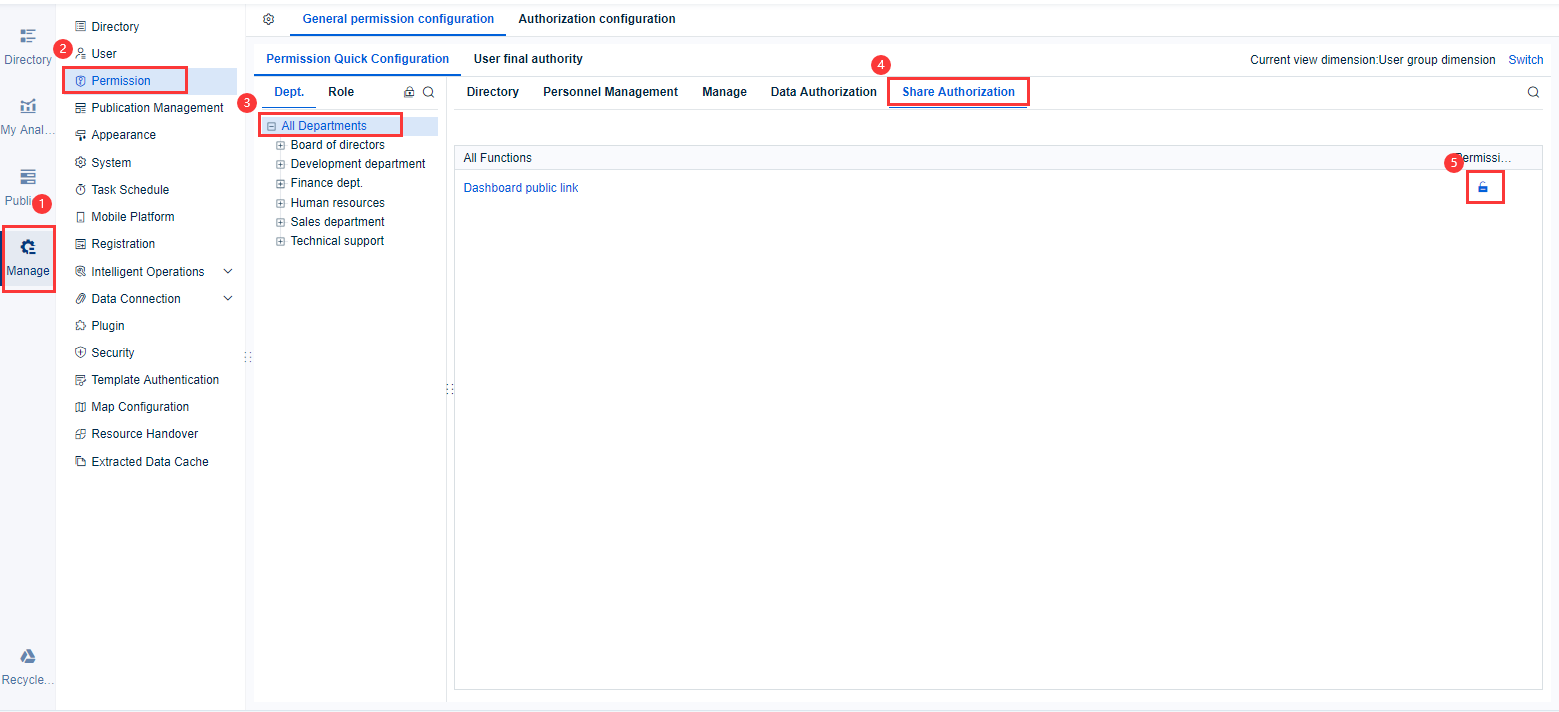
Admin Configurating Dashboard Public Link Permissions
The admin needs to configure permissions to share the public link of dashboards.
Note: The public link function allows all users to make their dashboards public, which may result in internal data leaks. Therefore, FineBI only allows ordinary users to share dashboards through public links after the admin grants them the permission to do so.
Creating a Public Link
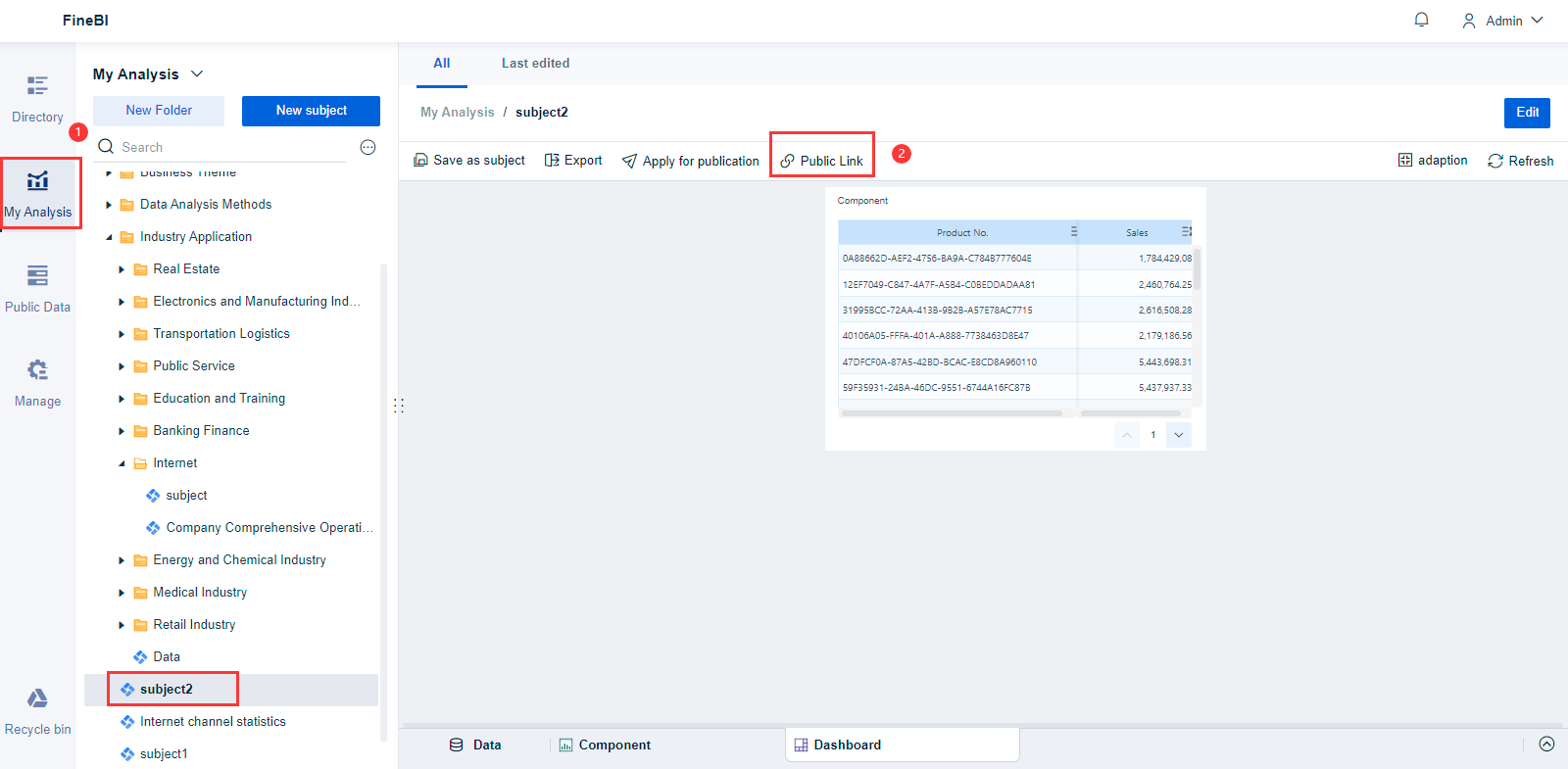
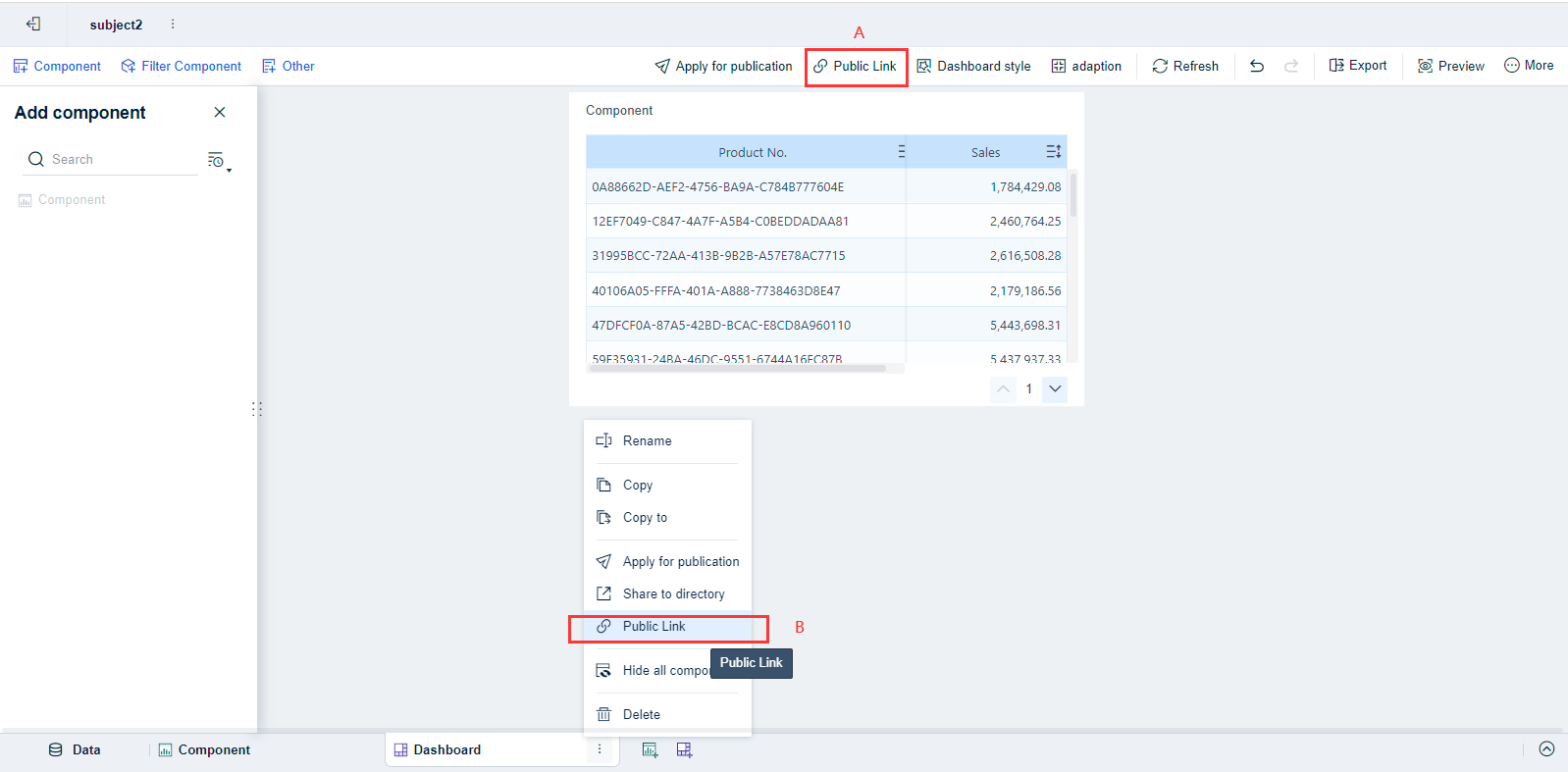
1. There are three ways to create a public link.
You can click Public Link on the dashboard preview page.
On the dashboard editing page, there are two ways to create a public link.
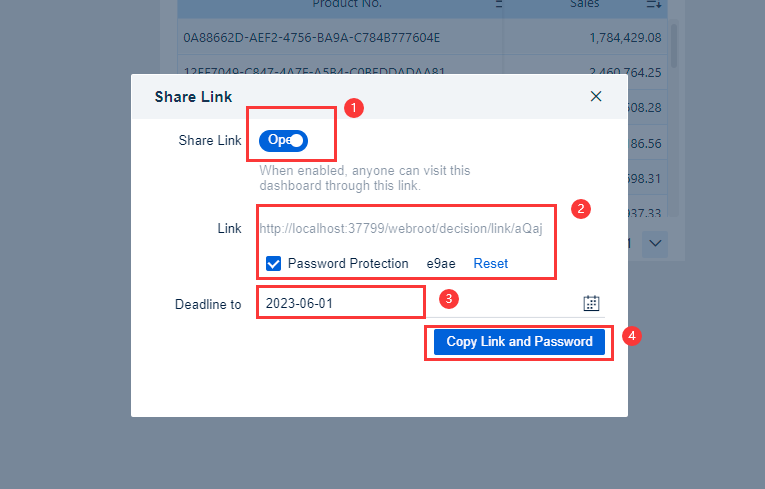
2. Enable Link Sharing. Link Sharing is disabled by default. Click it to generate a link automatically.
To avoid data leakage, you can select Password Protection to set a password for public link sharing, set its expiration time for access, and click Copy Link and Password.
Functions | Description |
Password protection | Automatically generate access passwords for public links to enhance data security. Password is required when accessing the link. |
Expiration time | The public link is permanently valid by default (not support dynamic time). It can be set to expire on a specific date (year/month/day). When the expiration date is reached, the public link will be automatically disabled. If the disabled public link is reopened, the link will be the same and the link will be the same and restored to be permanently valid as default settings. |
3. Click Copy Link and Password.
http://localhost:37799/webroot/decision/link/aQaj
Password: e9ae
Using Public Link to Access Dashboard
1. PC
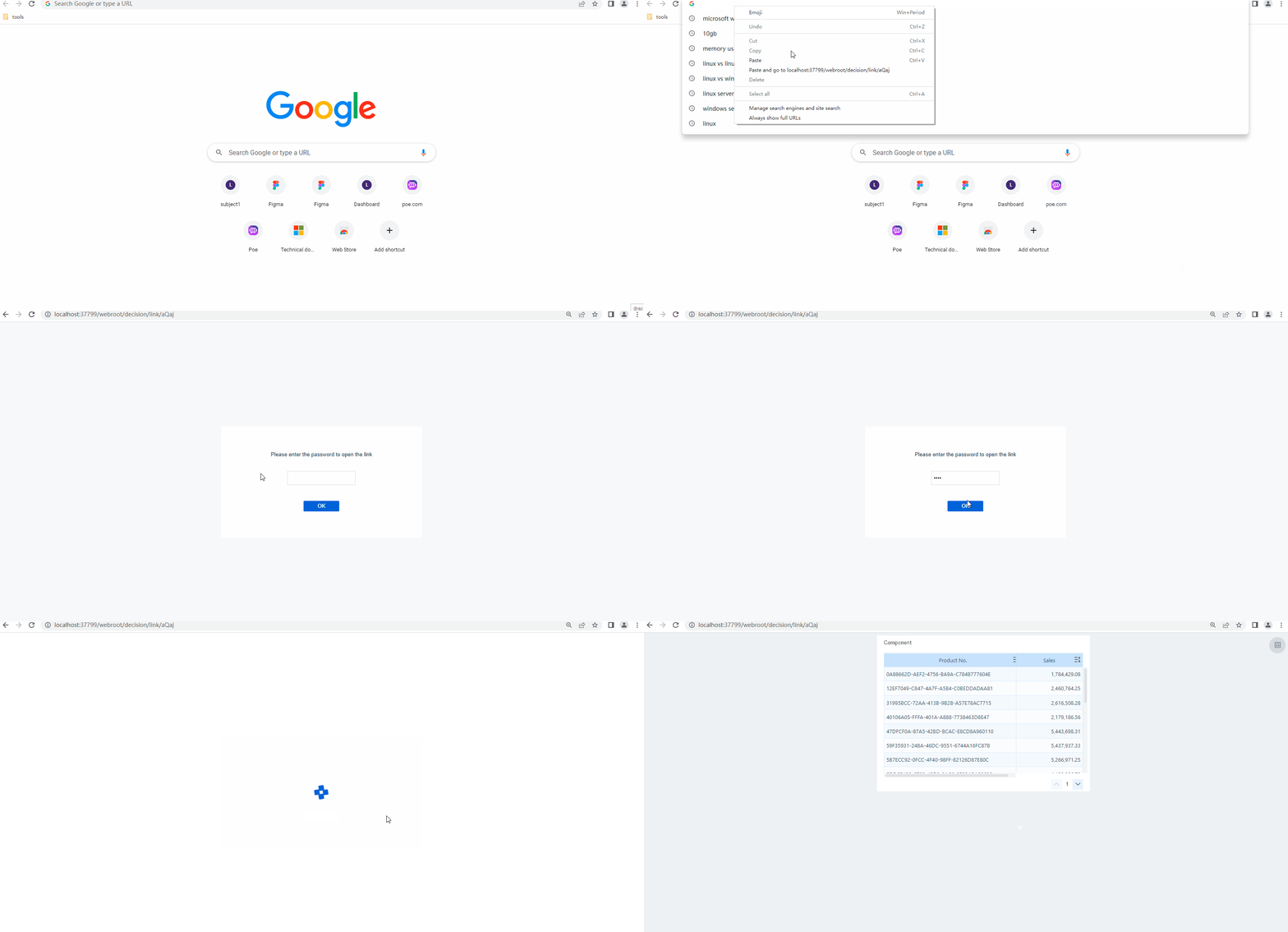
Copy the link into the URL address bar of your browser to go to the dashboard password input page. Enter the password to view the dashboard.
Note:
1. When you share a dashboard to others through a public link, there is no need to send the sharing link again after modifying the dashboard.
2. After five consecutive incorrect password attempts (excluding blank inputs), the login will be locked. You can only enter password again after one minute. If there is no operation on the dashboard for 10 minutes, you will need to re-enter the password to log in.
2. Mobile Device
a. You can access the dashboard through a public link on HTML5. Before you view the link on the mobile, a series of configurations is required, including installing the HTML5 mobile display plugin in the FineBI project, and modifying localhost in the generated link to the IP address.
b. Effect
When accessing the public link, if the password has not been entered before, you will be directed to the password input page.
Enter the correct password to go to the dashboard preview page. After going to the dashboard page, you cannot return to the password input page.
Note: Within 10 minutes after entering the correct password, you do not need to enter it again when accessing the dashboard on the same browser.
When an incorrect password is entered, an error message will prompt: Incorrect password. Your account will be locked after four incorrect attempts.
If there are too many incorrect attempts, your account will be locked. The incorrect password lock is only controlled on the front end.
Note: After resetting the password for a dashboard, if you have already entered the password, you will need to re-enter the password after refreshing the page.
Disabling Public Link Sharing
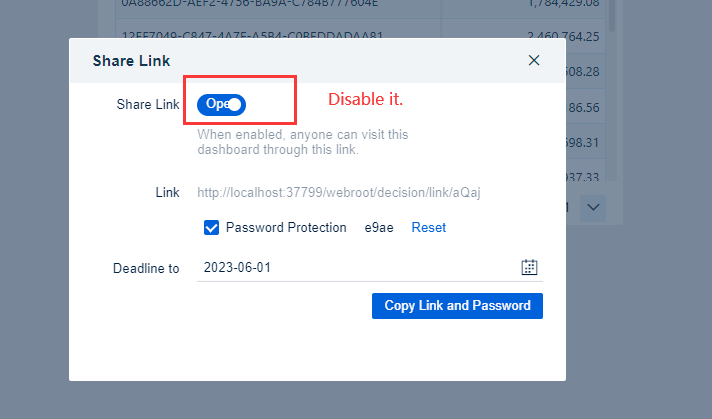
To prevent others from accessing a previously created public link, go to the public link creation page and disable the link.
1. PC
After you disable the link, the previously created public link will become invalid.
2. Mobile Device
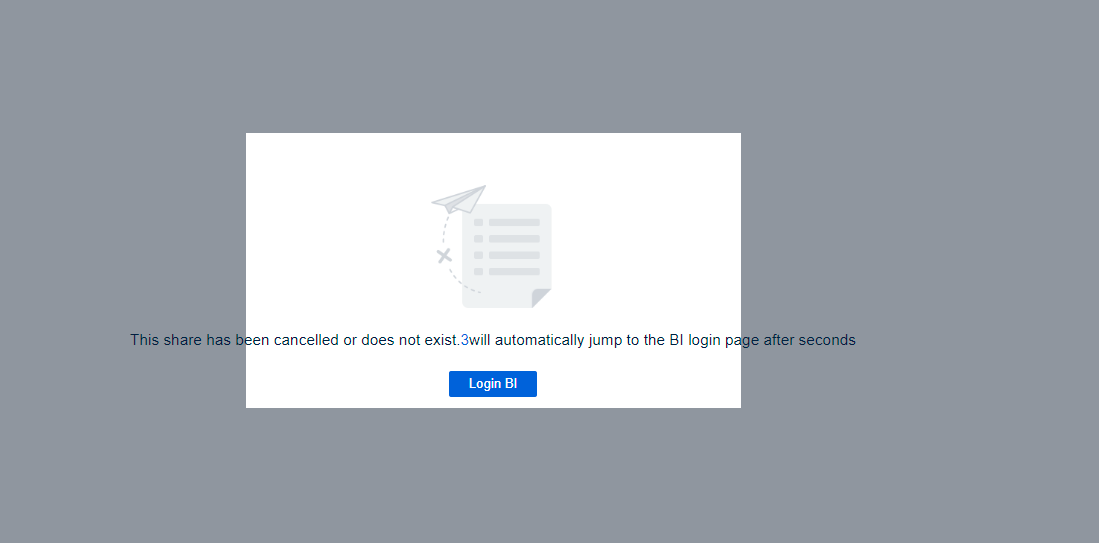
After you disable the link, the previously created public link on a mobile device will become invalid. If you try to access the dashboard again by refreshing the page, the link will not work.
Viewing All Shared Dashboards with Public Link编辑
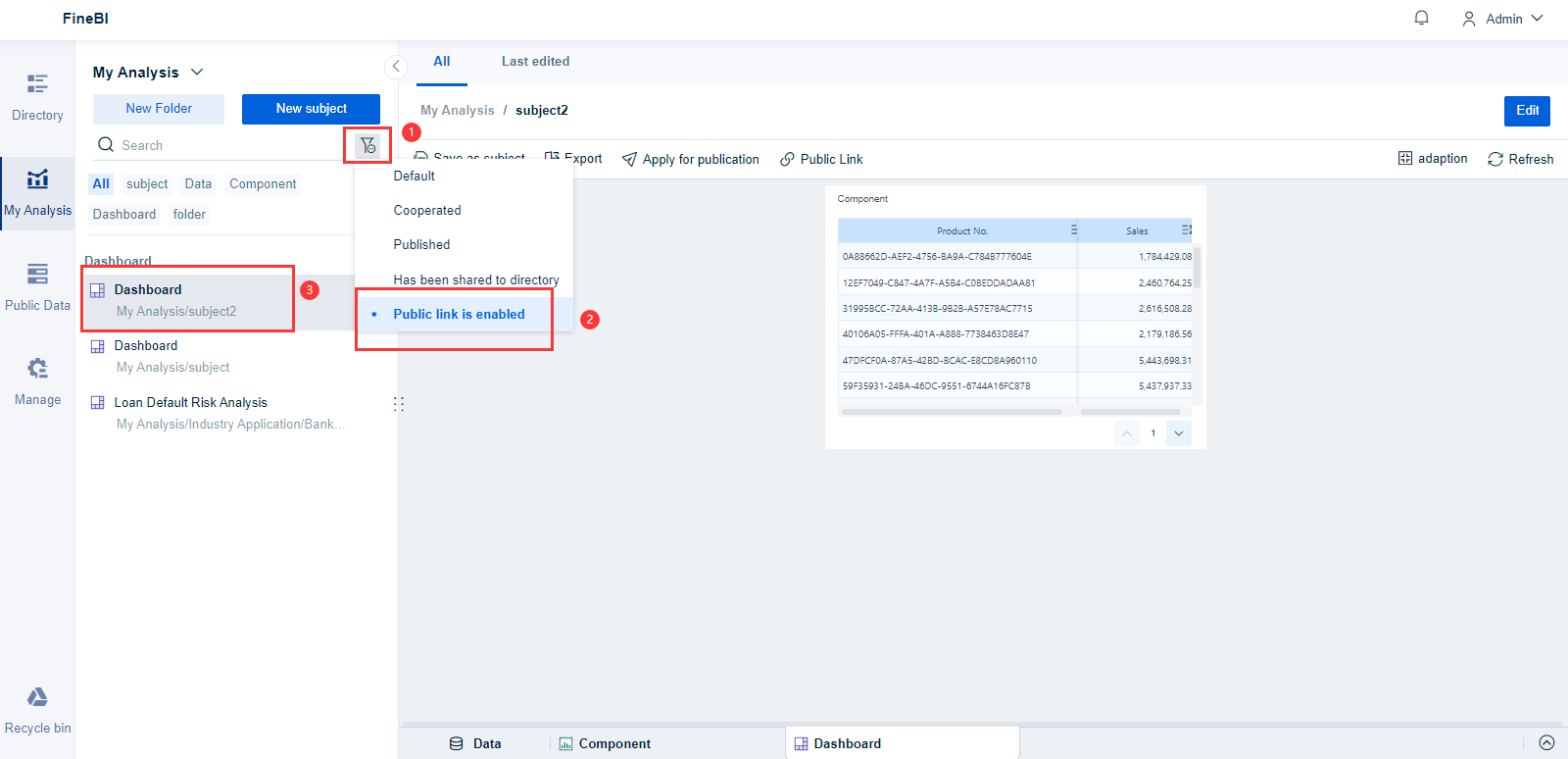
You can collectively view those dashboards with public link sharing enabled. Go to My Analysis and filter the analysis list by selecting Public link is enabled.
Notes编辑
Local Area Network (LAN)
If you use a local area network, you and other users must be on the same network to access the dashboard.
Server Registration
Problem: Public links display as unregistered or have exceeded the maximum number of users.
Cause: The server has not been registered.
Solution: Register and authorize the server. For details, see FineBI Server Registration Steps.
Server Backend Error
Problem: The server reports an error: ERROR error get user name from req ERROR reportId: 00748d435956496f8a6582f601a8edbf.
Solution: This error occurred in the 2020/01/15 version of FineBI, but it does not affect normal use. The 2020/04/03 version of FineBI no longer displays this error message.
Clearing All Linkage in Public Links
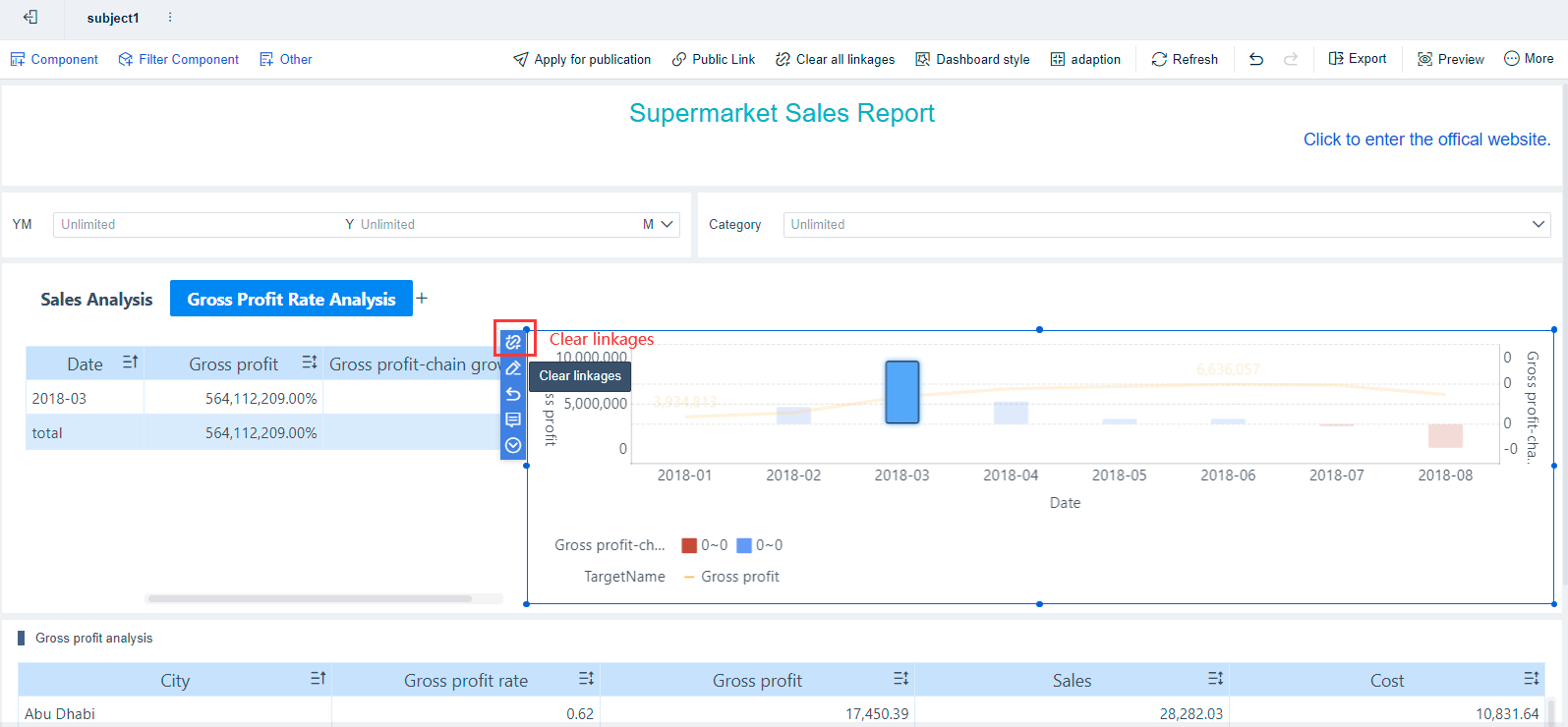
When there are linkages between dashboards, will appear in the upper right corner. Click to reset the dashboard and clear all linkages.
Login Requirement for Template Access with a Public Link
Problem: You need to login again if the public link of a dashboard jumps to a sub-template.
Cause: To prevent data leaks, you can only view the data according to your permissions.
Solution: When you set the dashboard jumpingto other dashboards, add the public link URL of the target dashboard. So you do not have to login again when accessing other dashboards through a public link. For details, see Jump.
IP Replacement
If you install FineBI locally instead of deploying it on a server accessible from the Internet, the public link for the dashboard will start with localhost.
This link cannot be accessed by other users who are not on the same localhost.
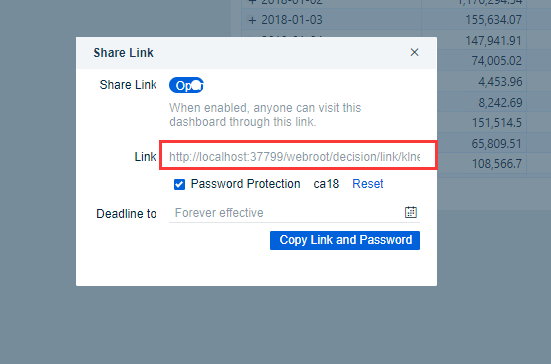
To solve this, replace localhost with the current server's IP address.
1. Viewing IP
You can search for information on the web to help you find your IP of Windows or Linux.
2. Modifying localhost to IP
For example, if the IP address of the machine where FineBI is installed is 120.20.29.224, the original public link would be:
http://localhost:37799/webroot/decision/link/brQ7
After replacing localhost with the IP address, the link would be:
http://120.20.29.224:37799/webroot/decision/link/brQ7
Creating Firewall Port Inbound Rule
If your FineBI port is not 37799, you need to change the local port to your own port number in the firewall inbound rules.