

Catalog:
Overview编辑
This document is applicable to users who have installed the FineVis Data Visualization plugin to learn operations related to FVS dashboard.
Version
Report Server Version | JAR Package | Plugin Version | Functional Change |
11.0 | 2021/11/15 | V1.0.0 | / |
11.0.16 | / | V1.16.1 | Formulas can be inserted in Surveillance Address for dynamic surveillance videos. |
11.0.16 | / | V1.17.0 | Added RTMP and RTSP streaming protocols; The video toolbar can be set. |
Function Description
In the surveillance video component, the live surveillance video can be displayed.
 Note:
Note:The surveillance video component does not support FVS Component Interaction Attribute.
Functions编辑
Function Entry
Choose Media > Surveillance Video in the component area and drag the component to the canvas. Set the surveillance address and other items in the Content configuration panel on the right side.
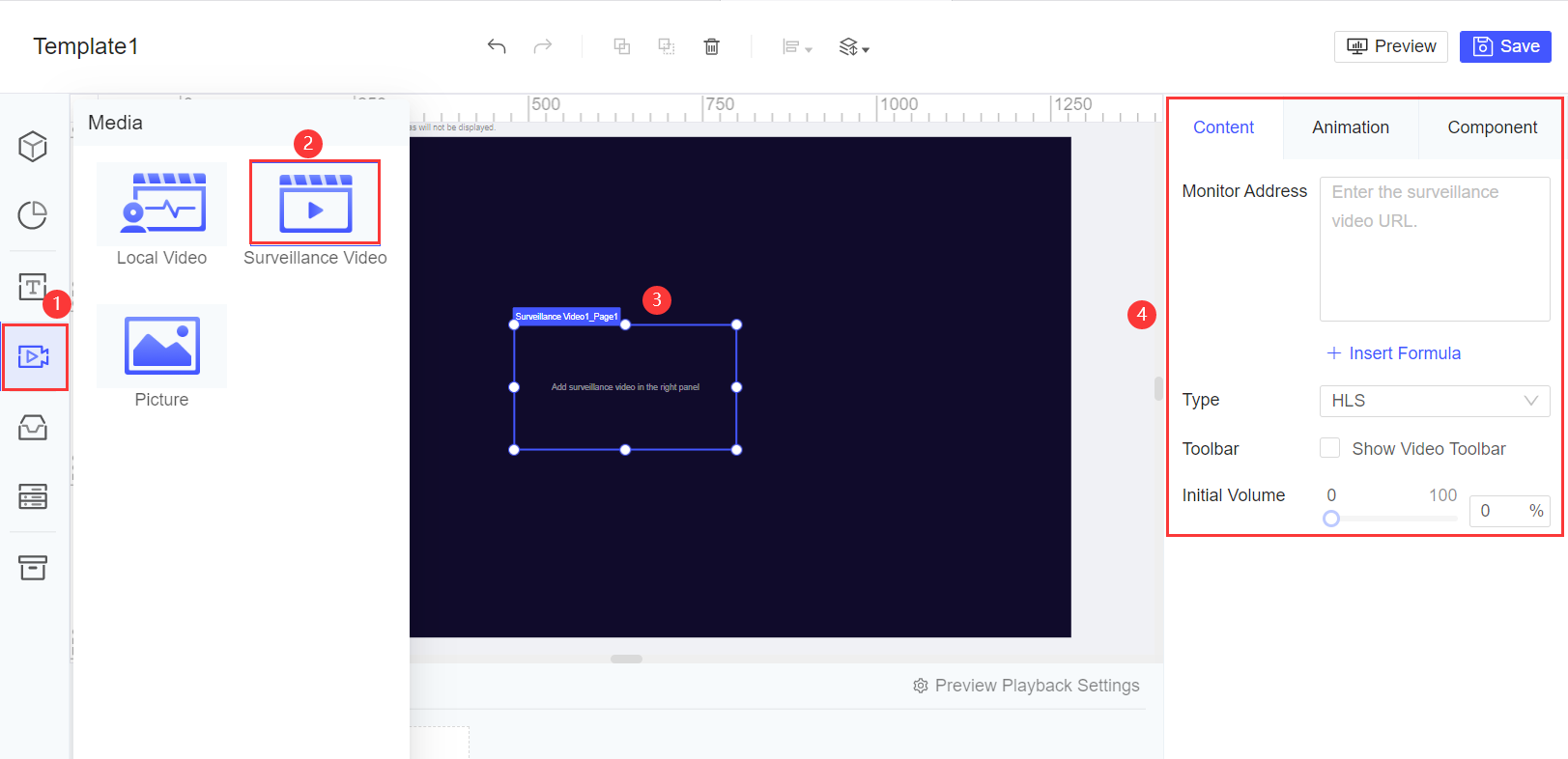
Function Description
Surveillance Address
Directly enter the surveillance video URL. In the plugin V1.16.1 and later versions, formulas can be inserted in the URL for dynamic surveillance videos.
In the plugin of versions earlier than V1.17.0, the surveillance address only supports HLS streaming protocol in http://XXX.m3u8 format.
In the plugin V1.17.0 and later versions, three types of streaming protocols are supported: HLS, RTSP, and RTMP. You need to select the corresponding Video Type to parse videos using different protocols.
Video Type
HLS, RTSP, or RTMP can be selected as Video Type. If RTSP or RTMP is selected, you need to install the FVS streaming media processing dependency plugin.
If the plugin is not installed, you are prompted to install it. Click To install to jump to the plugin management page.
· To download the plugin, click FVS streaming processing dependency plugin.
· For details about installing plugins in the designer, see Designer Plugin Management.
· For details about installing plugins on the server, see Server Plugin Management.
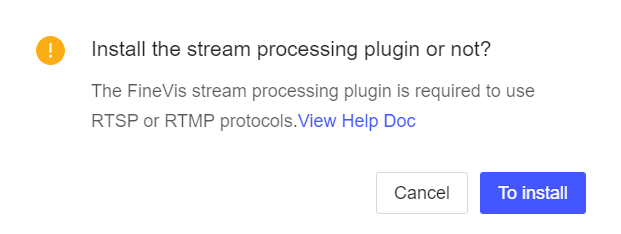
If the FVS streaming processing dependency plugin is not installed, an error message is displayed, indicating that no compatible source for this video was found if you preview a template with a RTSP or RTMP surveillance video.
Note:After the surveillance address is set, the live surveillance video is not displayed on canvas. You need to preview the template to view it.
Toolbar
In the plugin V1.17.0 and later versions, you can set whether to display the video toolbar, which is not displayed by default.
Initial Volume
The volume of the surveillance video can be set, which is set to 0 by default.
Example编辑
The following sections introduce how to display different surveillance videos through a dropdown box widget.
Creating a Template
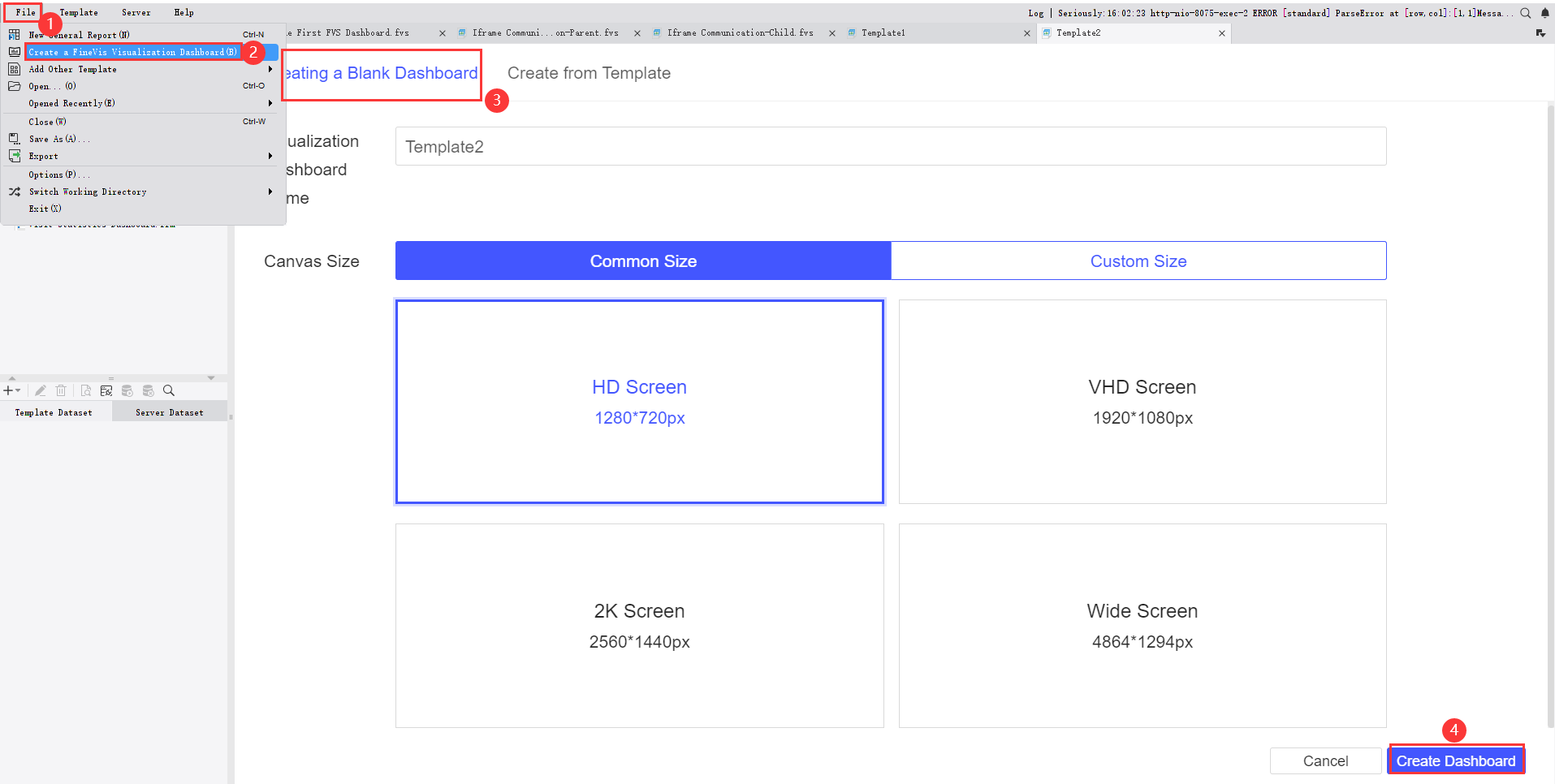
Choose File > New FVS Report. Then you can create a blank dashboard and customize its name and size.
Setting the Dropdown Box Widget
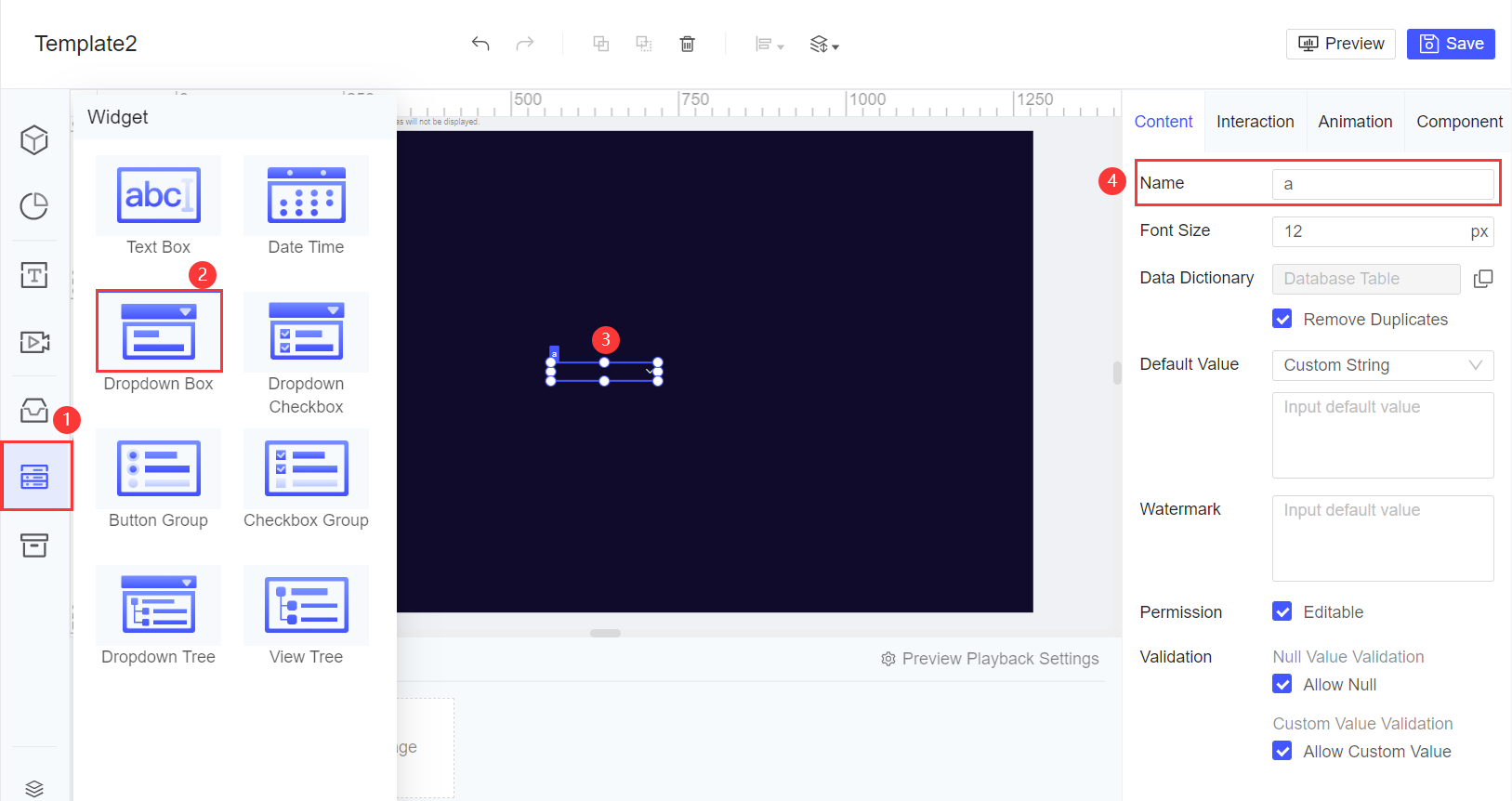
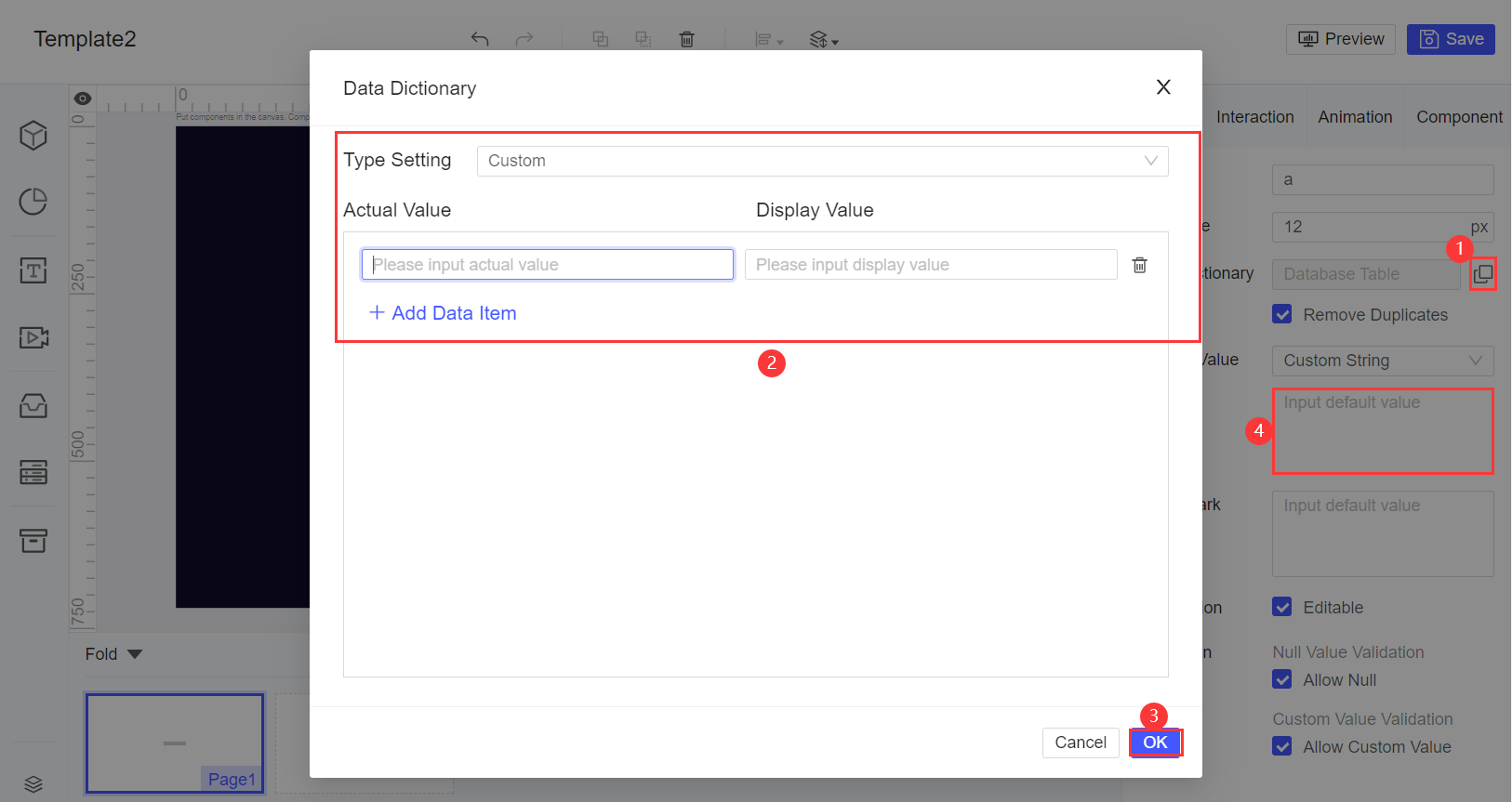
1. Drag a Dropdown Box widget to the canvas and rename it as a (the parameter), which is used to set the surveillance address and link the surveillance video component.
2. Set the widget's Data Dictionary to Custom, input the surveillance address as the actual value, and customize the display value. After the setting, set the default value to one of the inputted surveillance addresses.
Setting the Surveillance Video Component
Choose Media > Surveillance Video to add a surveillance video component on the page, click Insert Formula in the surveillance address, and enter $a.
Note: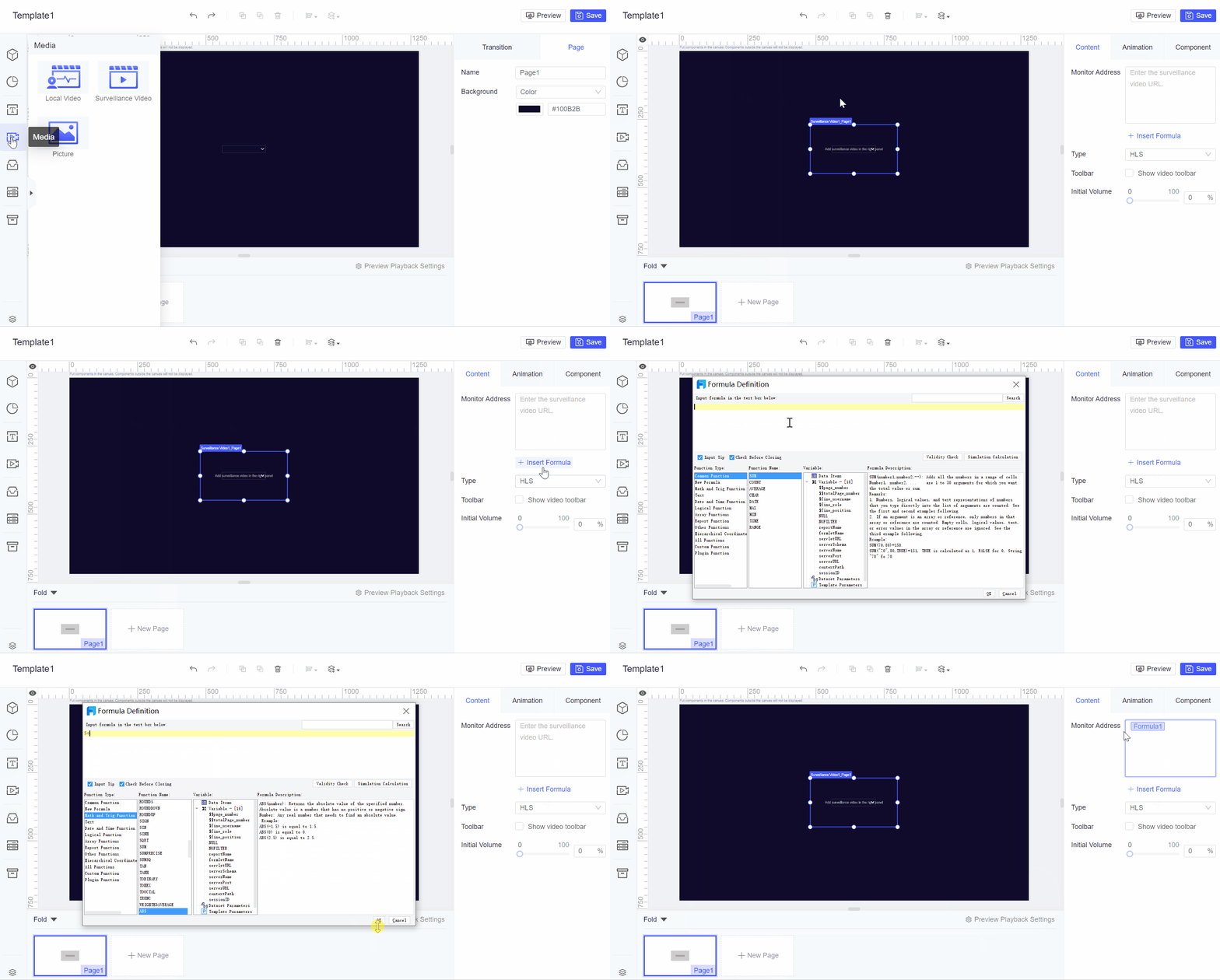
Demonstration
Click Save in the top right corner, and then click Preview.
Note: