

I. Overview编辑
1.1 Requirement
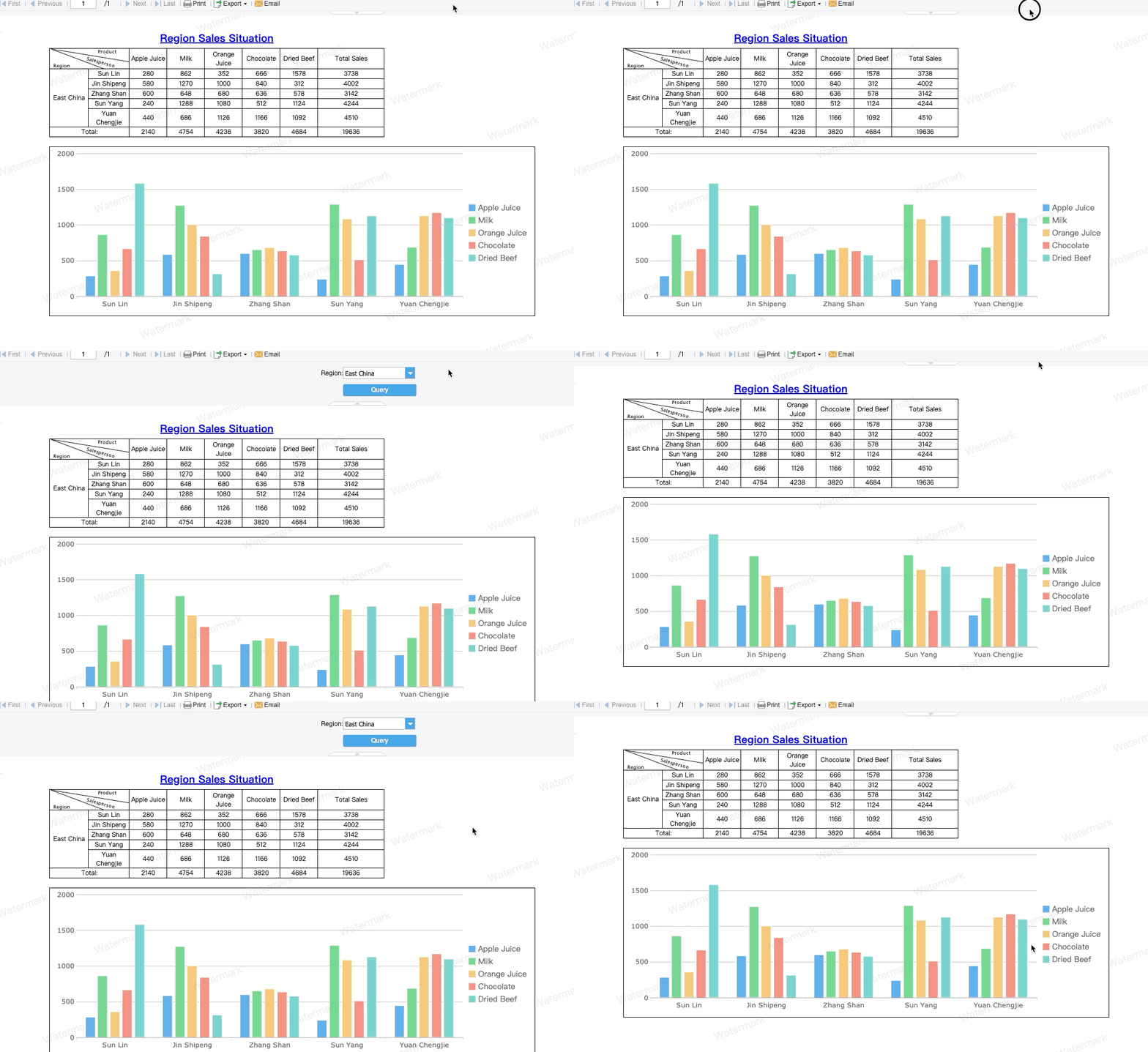
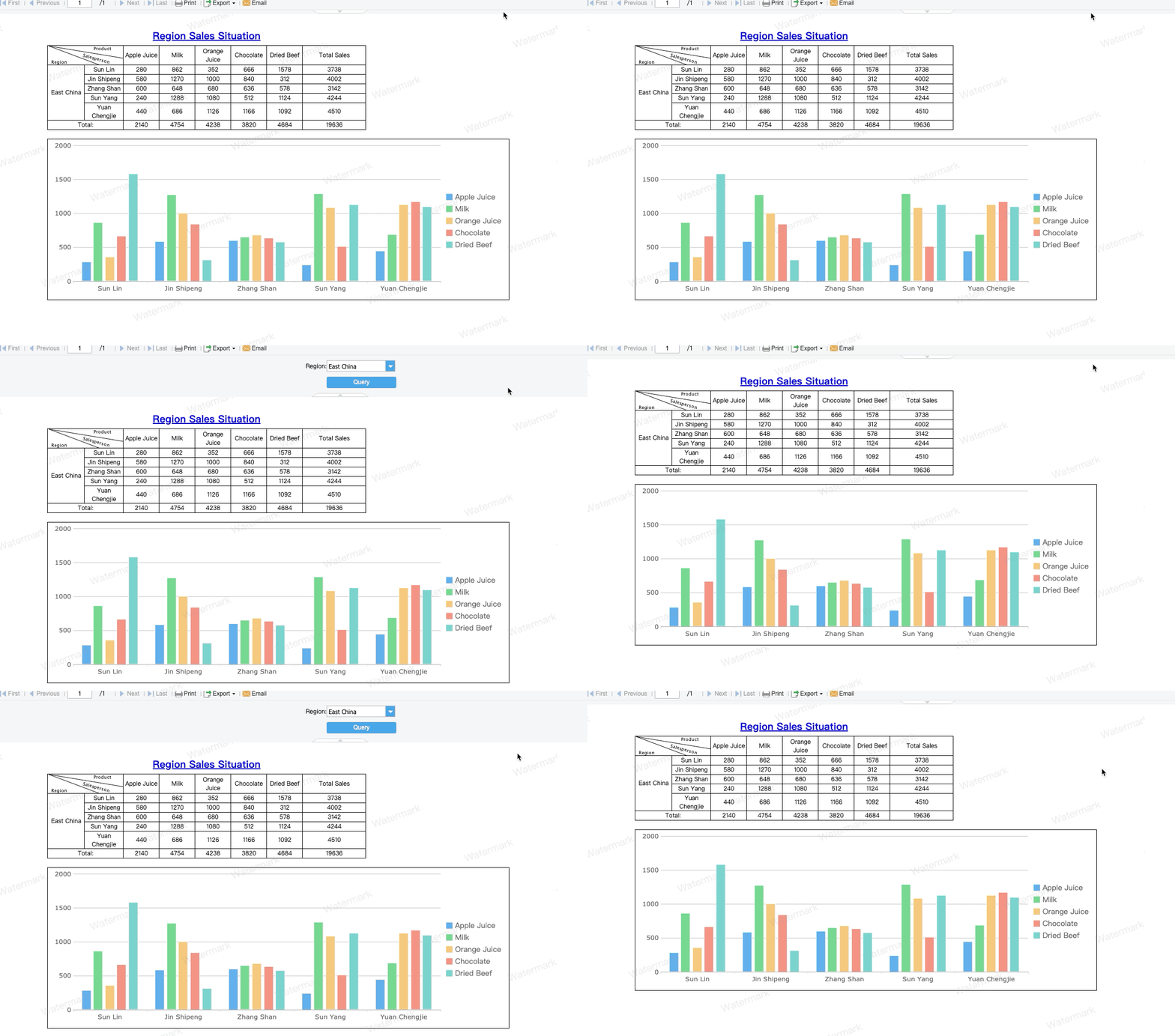
The built-in parameter pane in a report is displayed by default. To hide the parameter pane, you have to click on the triangle icon below the pane; to re-display it, you have to click on the icon again. The icon is too small to be easily operated. Some users have expressed the hope that the parameter pane can automatically be expanded when the mouse is moved onto it and be folded when the mouse is moved away, as shown in the figure below:
1.2 Solution
Expanding and folding the parameter pane are controlled separately
$('.parameter-container-collapseimg-down').click(); //The approach to expanding the parameter pane$(".parameter-container-collapseimg-up").click() //The approach to folding the parameter pane |
The two approaches can be bound to different mouse events (click, mouseover and mouseout), so that expanding and folding the parameter pane can be controlled with the mouse
II. Sample编辑
2.1 Sample 1: display or hide the parameter pane by moving the mouse
1) Open the template: %FR_HOME%\webroot\WEB-INF\reportlets\GettingStartedEN.cpt.
2) Click [Template]>[Web Attributes]>[Pagination Preview], choose Individually set for the template and add a Loading End event, as shown in the figure below:
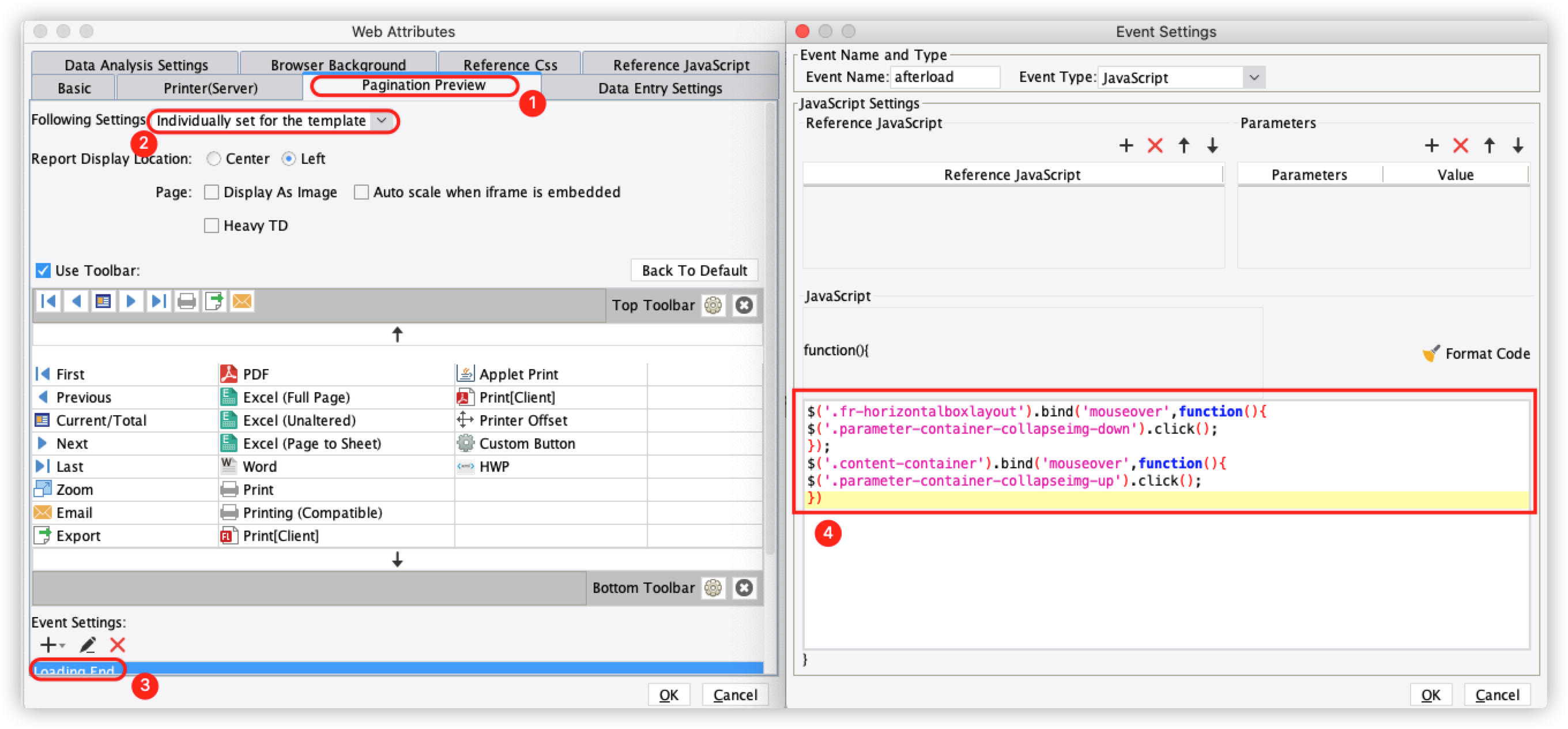
Input the following JS codes:
$('.fr-horizontalboxlayout').bind('mouseover',function(){ $('.parameter-container-collapseimg-down').click();//The parameter pane is expanded when the mouse is hovered over it});$('.content-container').bind('mouseover',function(){ $('.parameter-container-collapseimg-up').click();//The parameter pane is folded when the mouse is moved away}) |
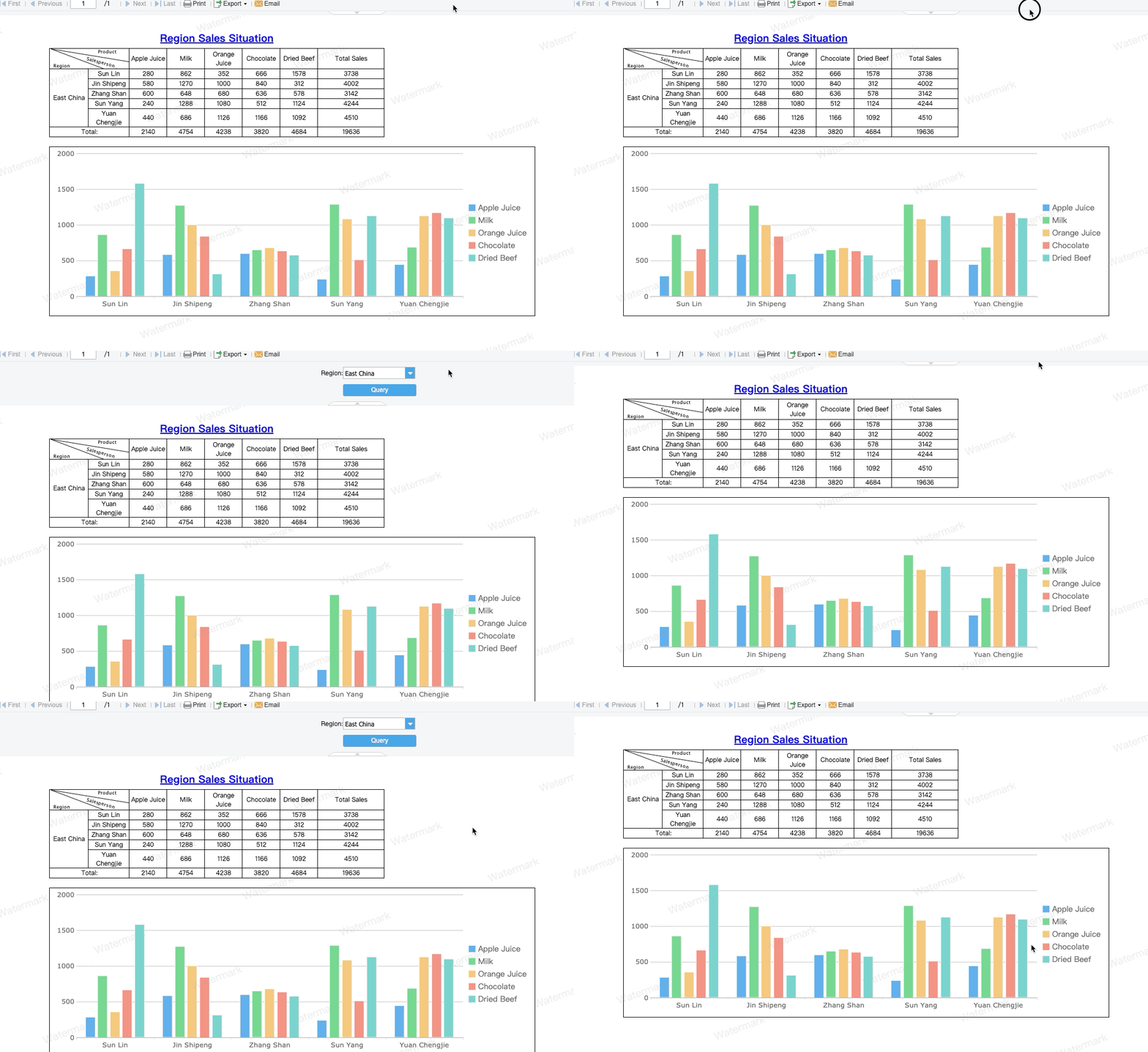
3) Save the template and then click [Pagination Preview] and the Query button. The effect is as described. The parameter pane is automatically folded when we view the content and is expanded when the mouse is moved onto it.
2.2 Sample 2: display or hide the parameter pane by clicking the mouse
To hide the parameter pane by clicking the main content instead of hovering the mouse over the main content, click [Template]>[Web Attributes]>[Pagination Preview], choose Individually set for the template and add a Loading End event, as shown in the figure below:
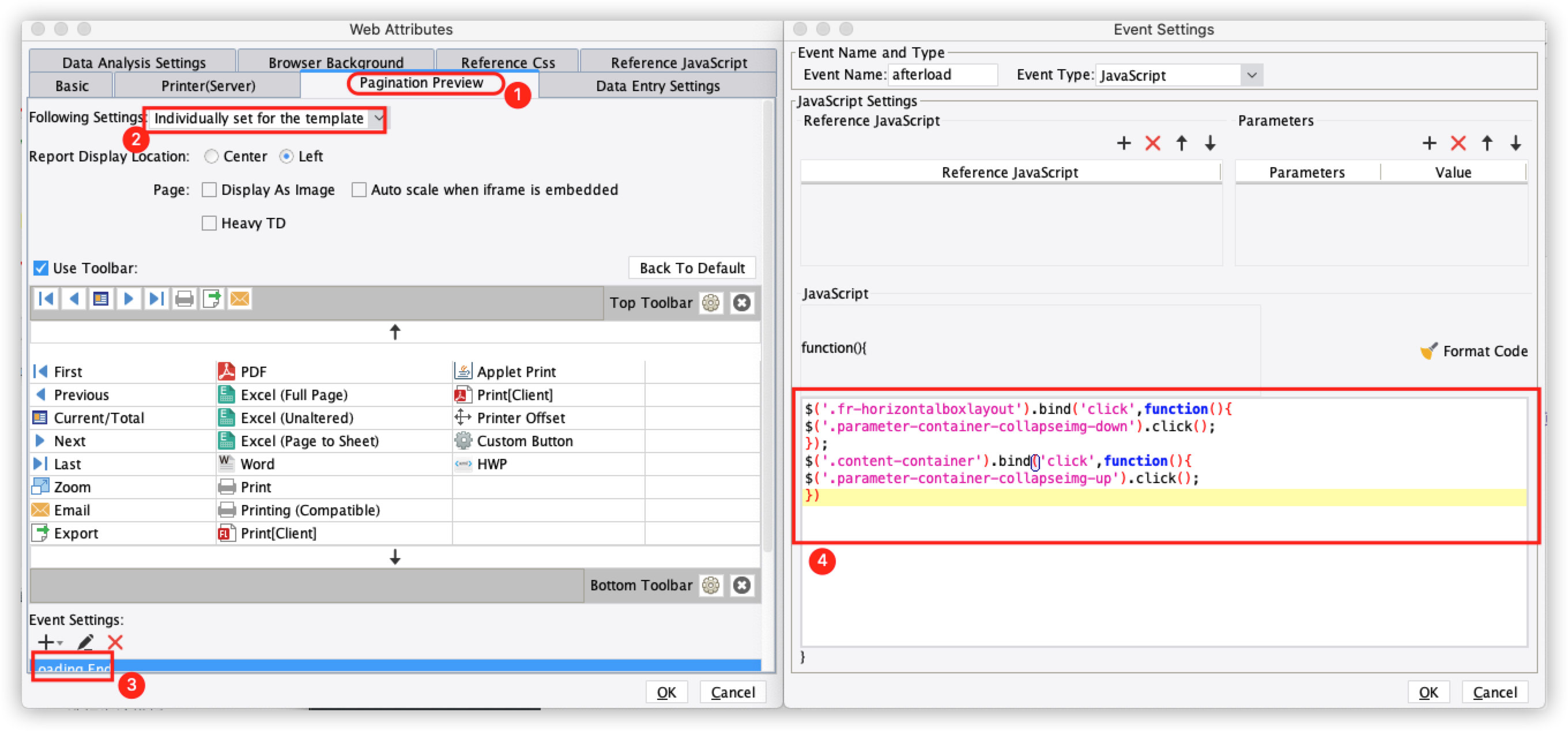
Input the following JS codes:
$('.fr-horizontalboxlayout').bind('click',function(){ $('.parameter-container-collapseimg-down').click(); //The parameter pane is expanded when it is clicked});$('.content-container').bind('click',function(){ $('.parameter-container-collapseimg-up').click(); //The parameter pane is folded when the report area is clicked}) |
Save the template and then click [Pagination Preview] and the Query button. Left click the main content to fold the parameter pane, move the mouse onto the parameter pane, and left click the main content again to expand the parameter pane.
2.3 Sample 3: preview to automatically hide the parameter pane
The parameter pane can be automatically folded after template preview.
Select the parameter pane, choose the para widget in Widget Setting on the right and add an After Initialization event, as shown in the figure below:
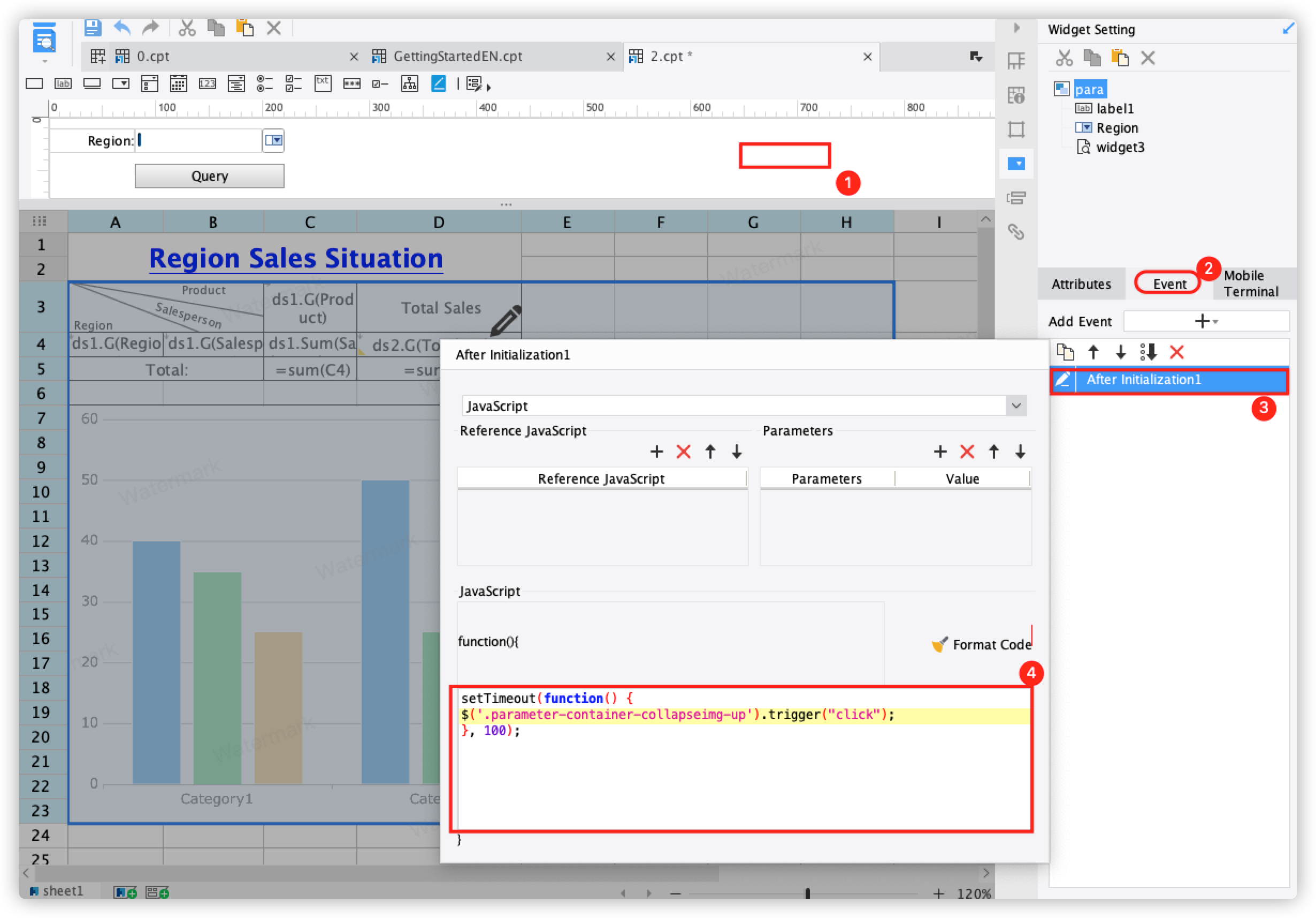
Input the following JS codes:
setTimeout(function() { $('.parameter-container-collapseimg-up').trigger("click");}, 100); //The parameter pane is automatically folded 100ms after the report is opened |
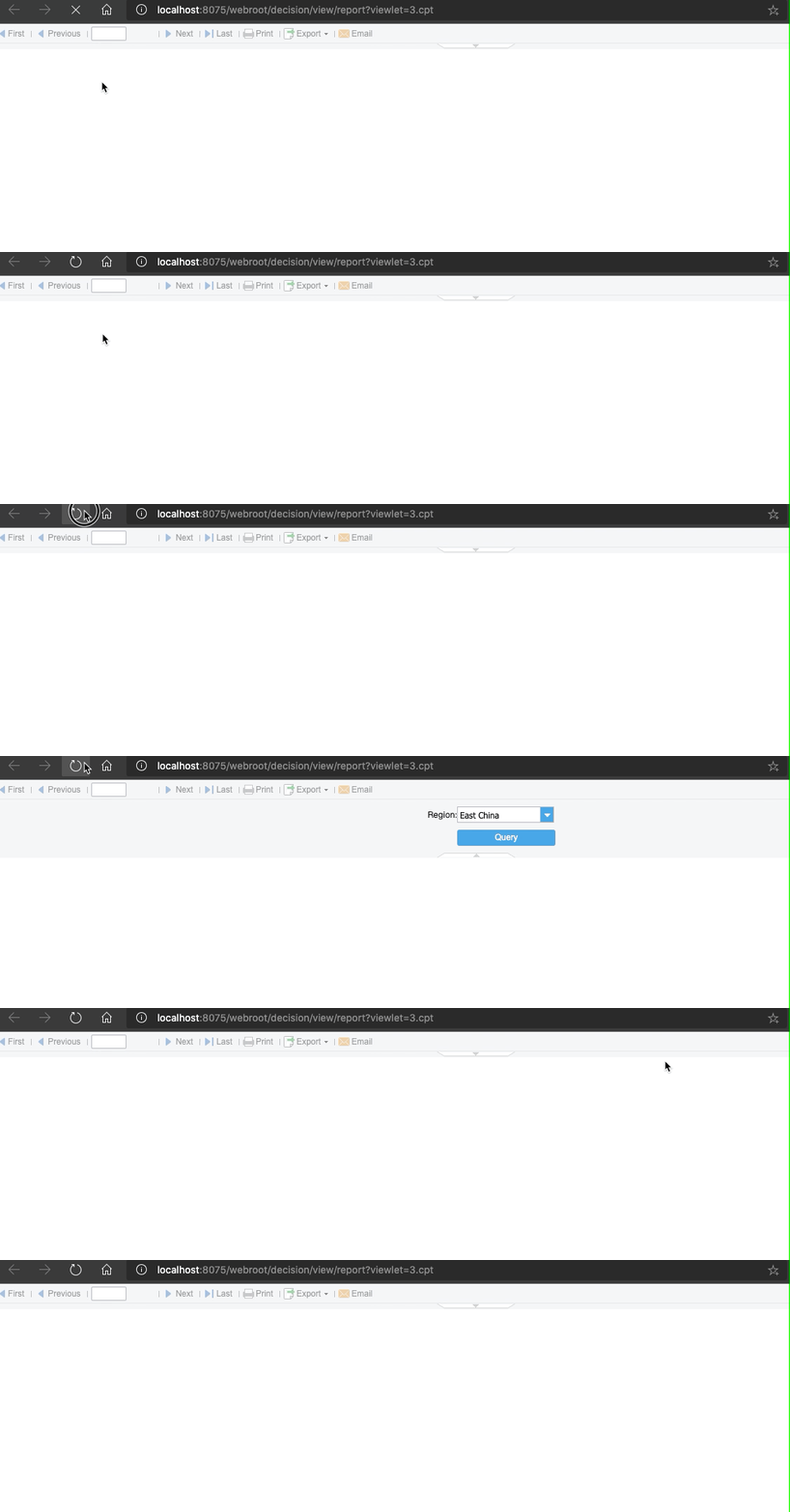
Save the template and click [Pagination Preview]. The parameter pane is automatically folded 100ms after the template is loaded.
 Control the Expanding and Folding of Parameter Pane_1.cpt