

目录:
Overview编辑
Version
FineBI Version | Functional Change |
6.0 | / |
6.0.3 | Added the Public Link button to the toolbar of the dashboard page. |
6.0.16 | Allowed to share analysis documents through the public link. |
| 6.1 | Added the function entry of Public Link for sharing. Supported multiple resource sharing in Public Link. |
Application Scenario
You want to share the analysis result in FineBI with the user who does not have a FineBI account.
Function Description
After you share the public link, anyone can view the shared resources by clicking the link without login or being assigned any data permissions.
Besides providing convenient access, this function allows you to set a password for the link to avoid data leakage and ensure data security.
You can set a validity period for the current public link, beyond which the public link is inaccessible.
Notes
If you have installed the local version of FineBI, you are advised to use the online version of FineBI to experience the function.
For a local BI, sharing a public link is subject to environmental restrictions and requires modifying the link. For details, see section "Notes."
Procedure编辑
Admin Configuring the Permission of Public Link of Dashboard
The admin needs to assign permission for users to share the public link of dashboards, as shown in the following figure.
 Note:
Note:
Public Link Creation
1. You can share multiple components/dashboards/analysis documents in an analysis subject.
You can share dashboards individually.
Public Link | Description | Entry |
Analysis Subject | You can share multiple resources in an analysis subject. Components Dashboards Analysis documents | In My Analysis:
On the subject editing page:
|
Dashboard | You can share dashboards individually. | In My Analysis:
On the subject editing page:
|
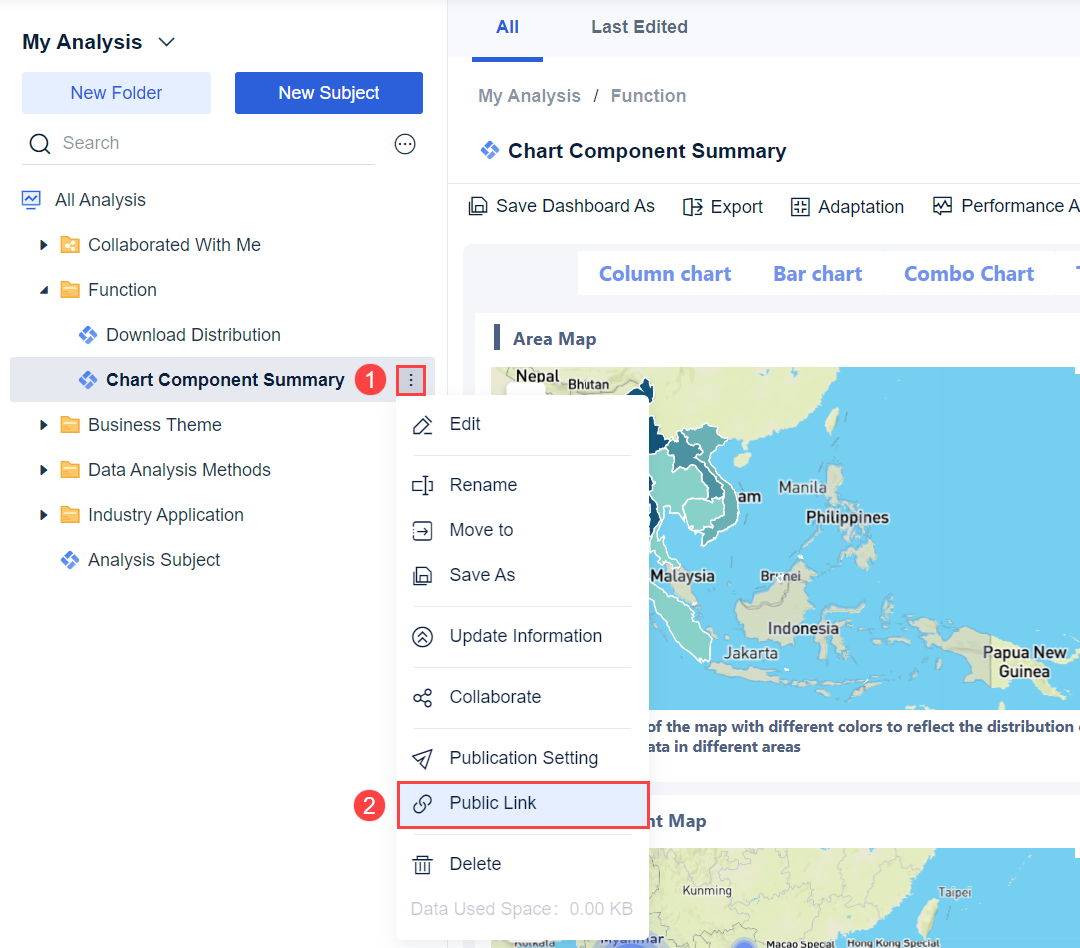
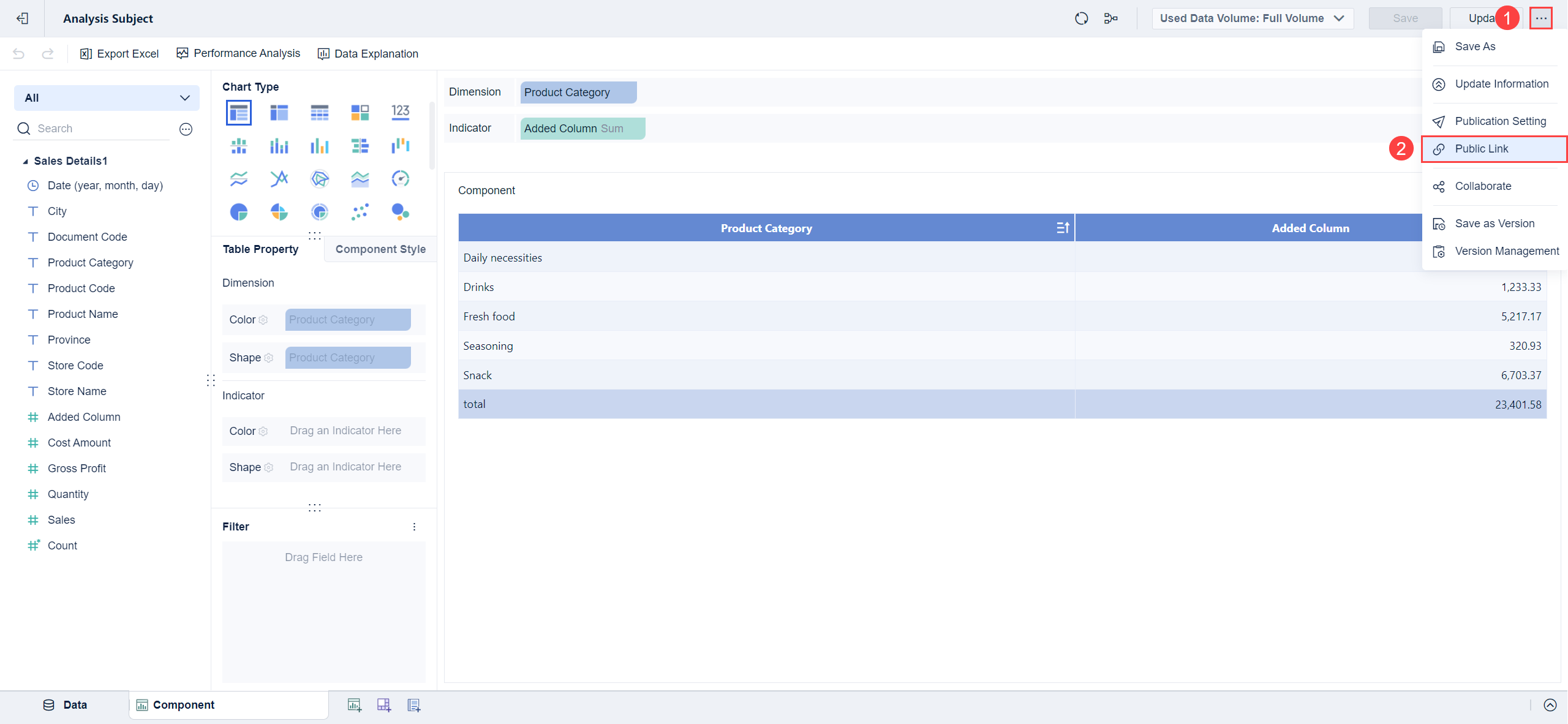
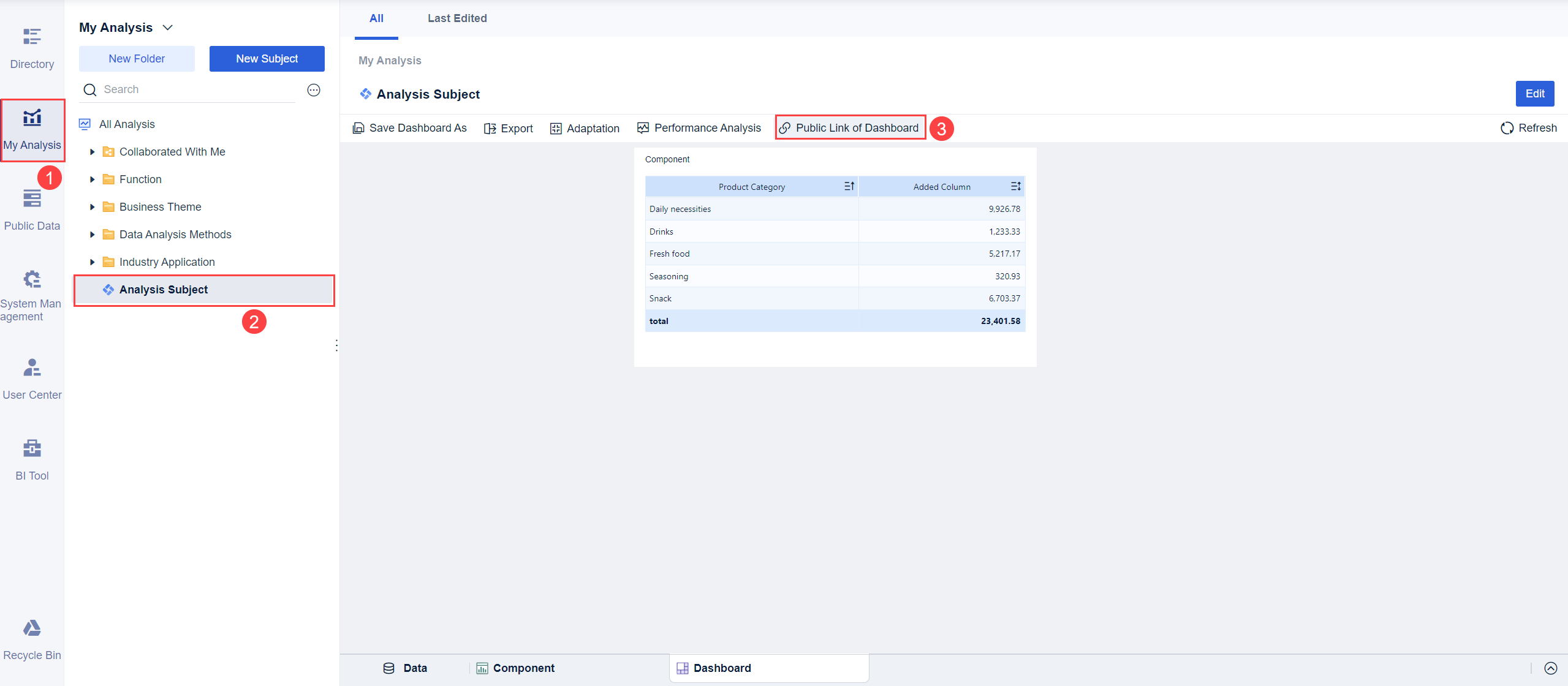

2. Enable the Sharing by Link function. By default, the Sharing by Link function is disabled. If you enable it, it automatically creates a link for sharing. If concerned about data leakage, you can tick Password Protection to set a password and set the access validity period for the public link. Then, click Copy Link and Password, as shown in the following figure.
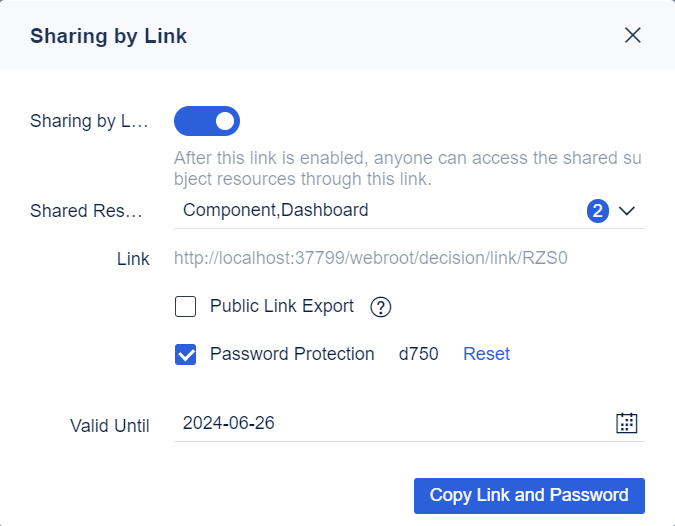
Function | Description |
| Resource Sharing | Multiple resources, including dashboards, components, and analysis documents, can be shared through a public link. |
Password Protection | Automatically generates an access password for a public link to enhance data security. Anyone who wants to access the link must enter the password. |
Validity Period | The current validity period for public links (year-month-day). By default, it is permanently valid (Dynamic time is not supported.). The public link will be invalid after the validity period expires. If the public link is enabled again, the link remains unchanged, and the validity period is Valid Permanently (default setting). |
Dashboard Accessing Through Public Link
On PC
Click the public link. You need to input the password if the public link has password protection. The following figure shows the preview effects.
You can switch the tabs at the bottom to view multiple resources in the current subject through the public link.
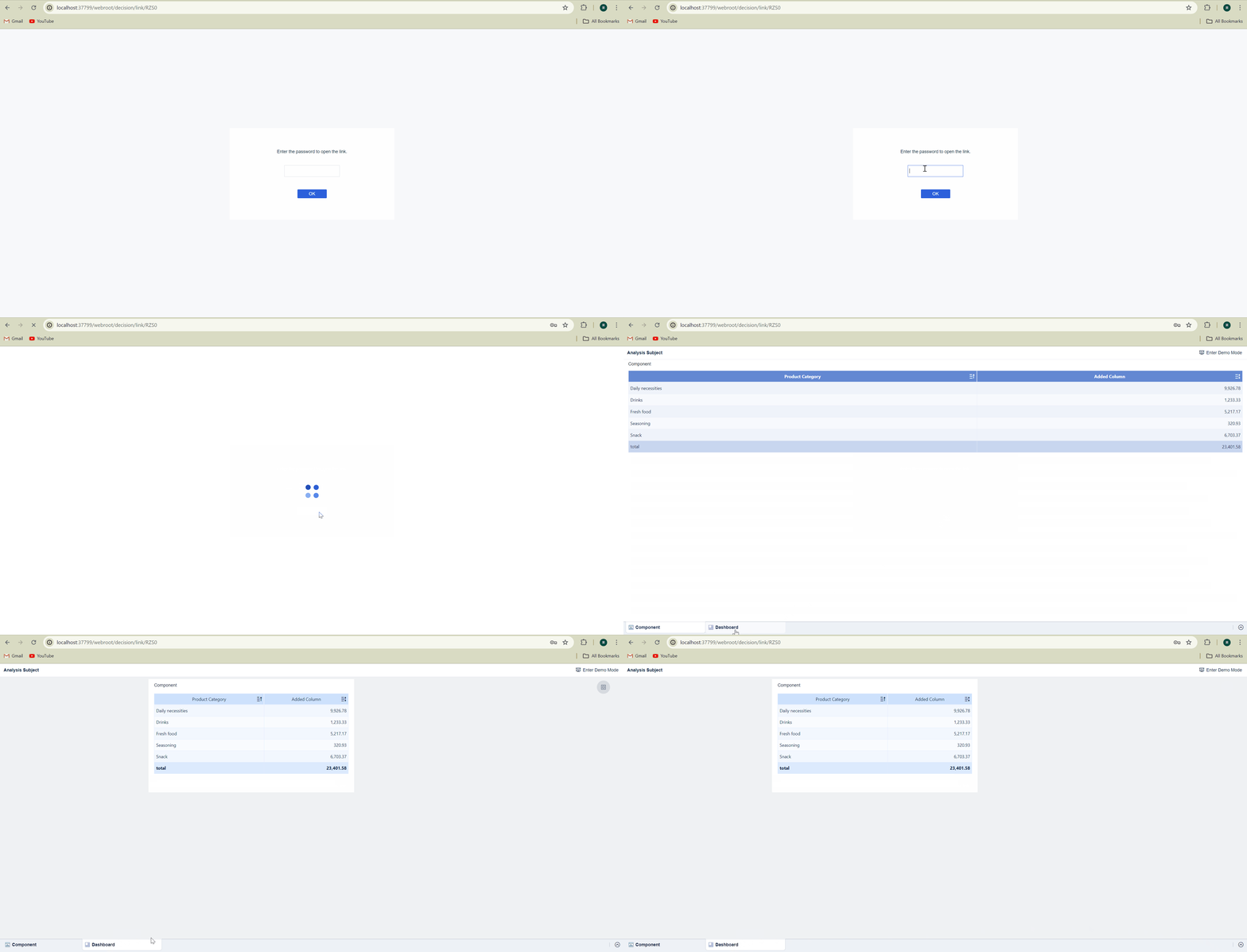
Note:1. Resending the link is not required after you modify a dashboard that has been shared with users through a public link.
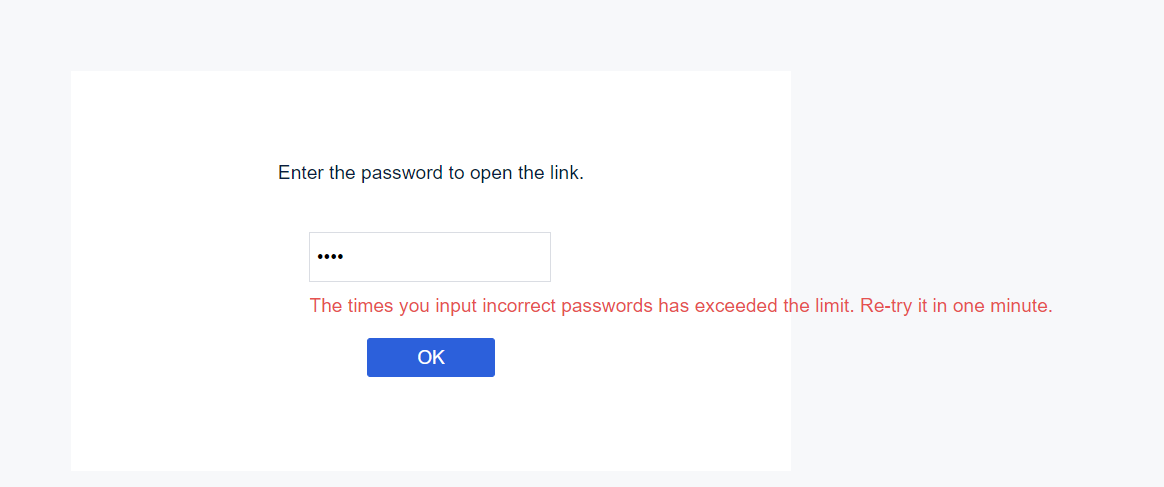
2. If you enter the password incorrectly five times (excluding blank input), you cannot enter the password for one minute. Enter the correct password one minute later to access the dashboard preview page. If you have not operated the dashboard within ten minutes, you need to re-enter the password for access.
Mobile Access Settings
1. HTML5 is typically used to access the dashboard on mobile devices through a public link. You need to complete a series of configurations before viewing the link on a mobile device. The procedures are as follows:
a. Install the HTML5 Mobile Display plugin in the FineBI project. You can obtain the plugin at https://community.finereport.com/market/?keyword=html.
b. Modify localhost in the generated link to the IP address. For details about the steps, see section "IP Replacement Methods."
2. Effect
When accessing a public link, if you have not entered a password before, you will be directed to the password-entering page first, as shown in the following figure.
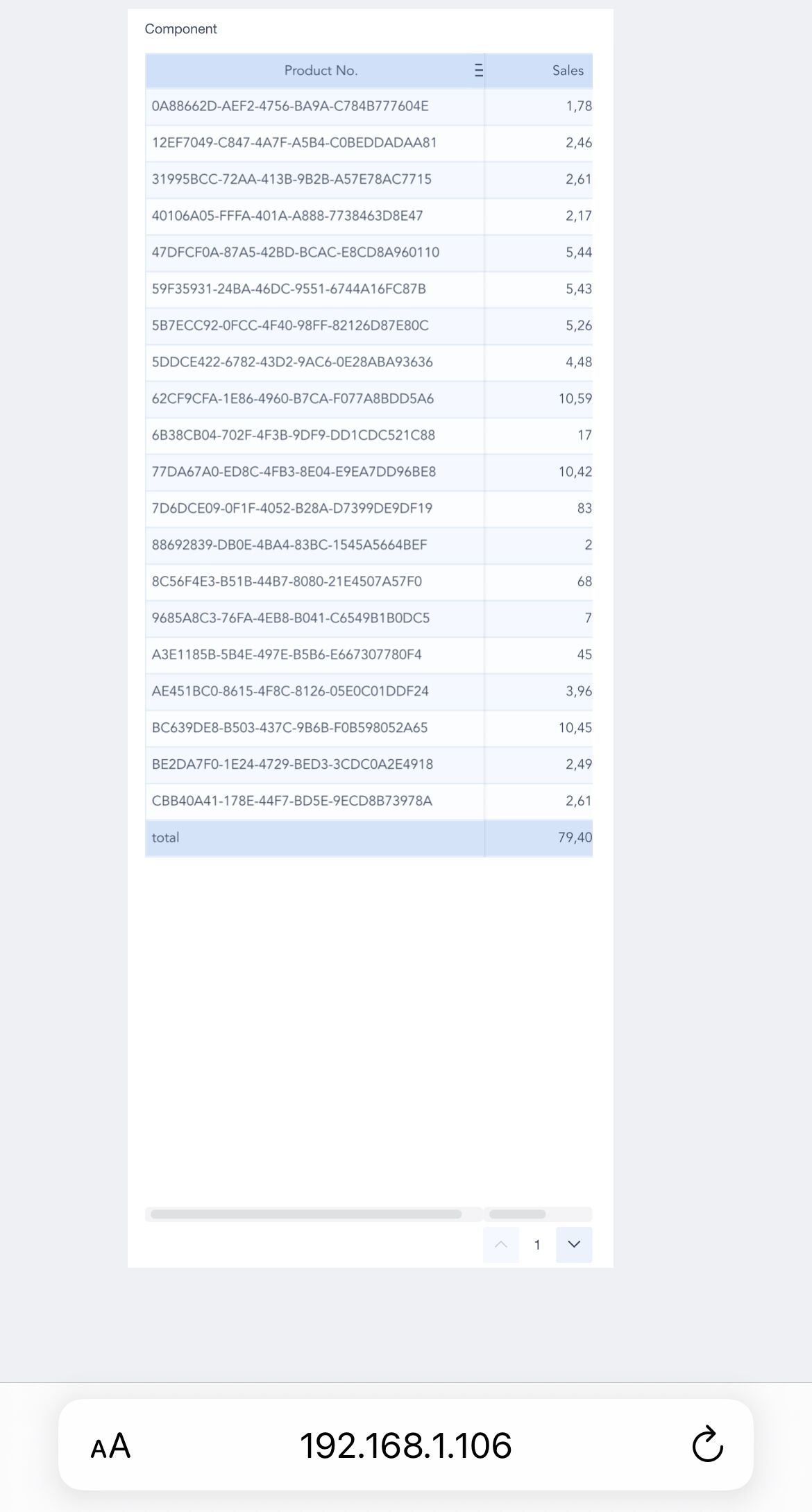
Enter the correct password to access the dashboard preview page and view the dashboard. After entering the dashboard page, you cannot go back to the password-entering page.
Note:Within 10 minutes after entering the correct password, you can access the dashboard in this browser without entering the password.
If you enter the incorrect password, an error message will be displayed, as shown in the following figure
If you enter the incorrect password, an error message will be displayed, as shown in the following figure.
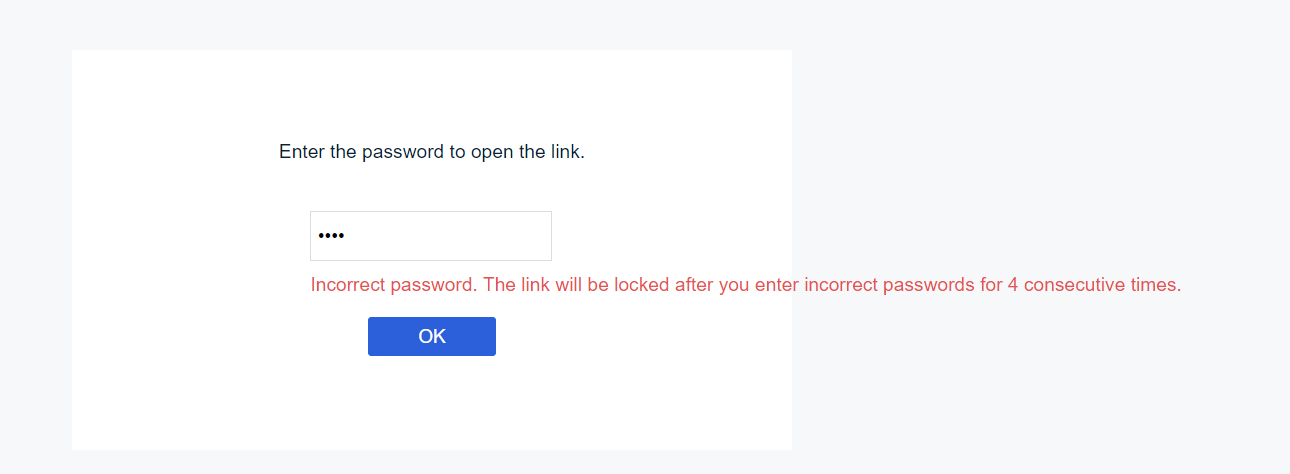
If the number of incorrect inputs exceeds the limit, it will lead to lockout (Password lockout is only controlled on the front end.).
Note:Demo Mode
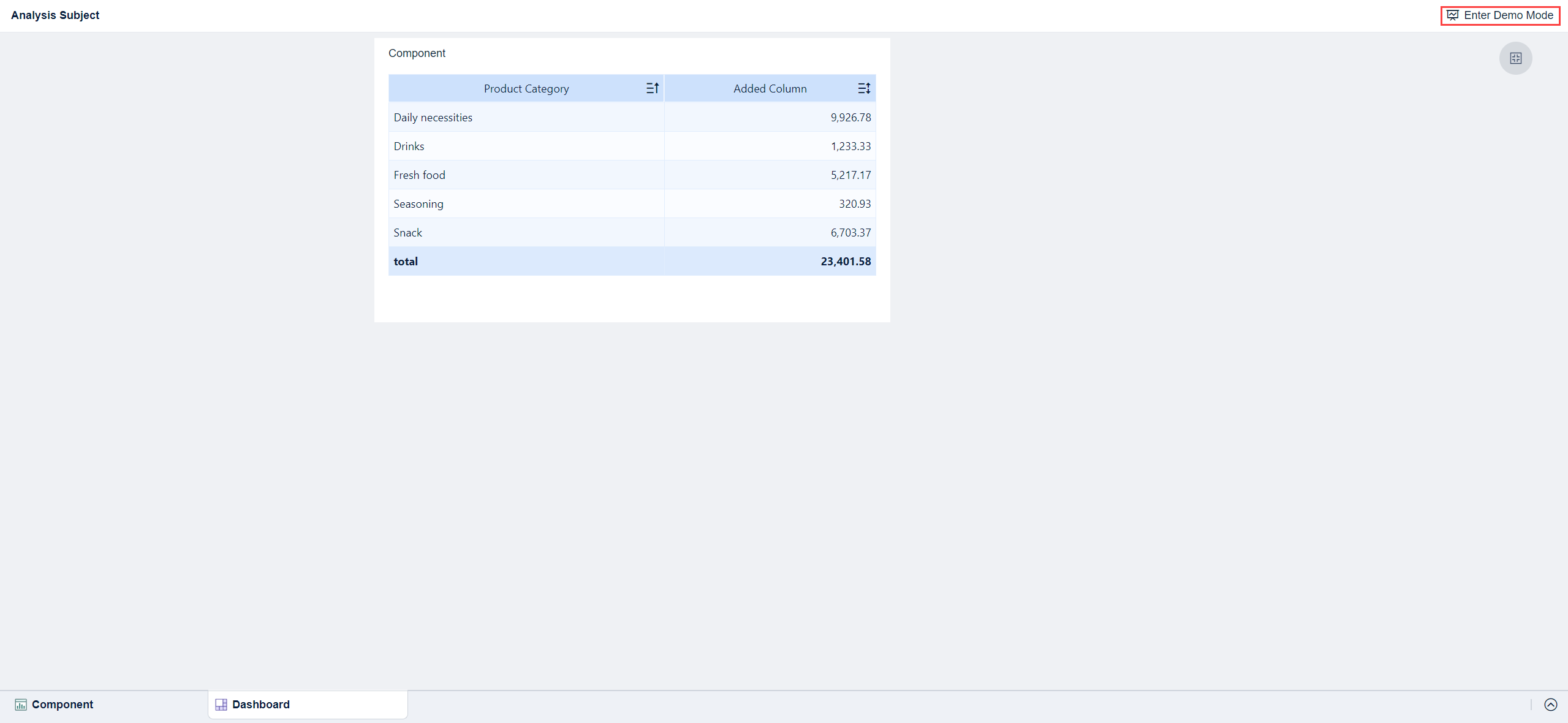
Create a public link for the subject. (Full-screen viewing of the shared content is supported by clicking Enter Demo Mode in the upper-right corner.)
Sharing by Link Disabling
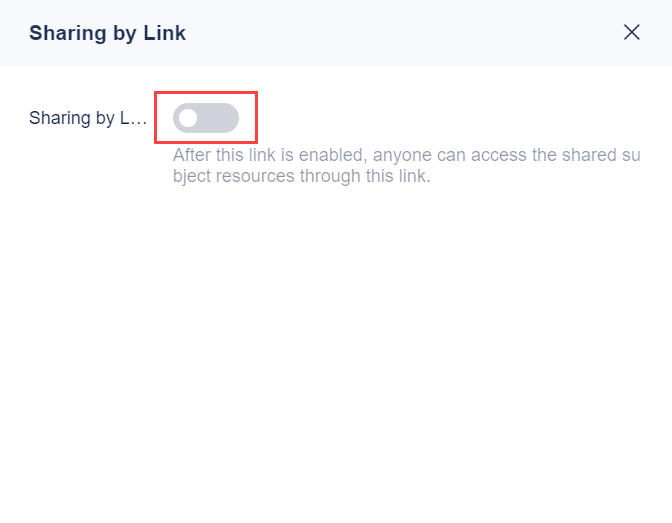
If you do not want others to access the previously created public link, you can click Public Link and disable Sharing by Link on the Sharing by Link page.
On PC
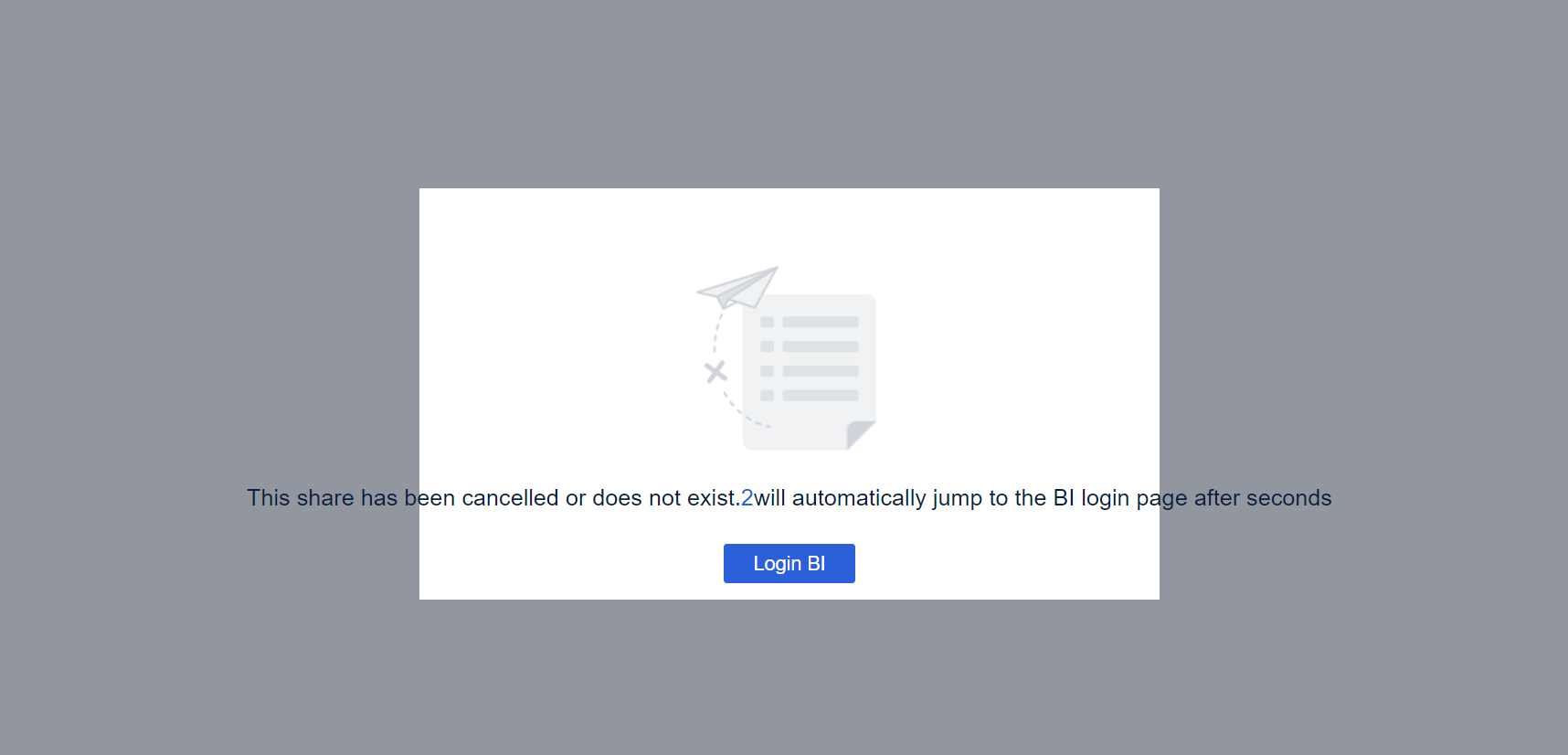
After you disable the Share Link function, the previously created public link becomes invalid, as shown in the following figure.
On Mobile Terminals
After you disable the Sharing by Link function, the mobile public link becomes invalid. You cannot view the dashboard after refreshing the page.
Viewing All Dashboards Shared Through Public Link编辑
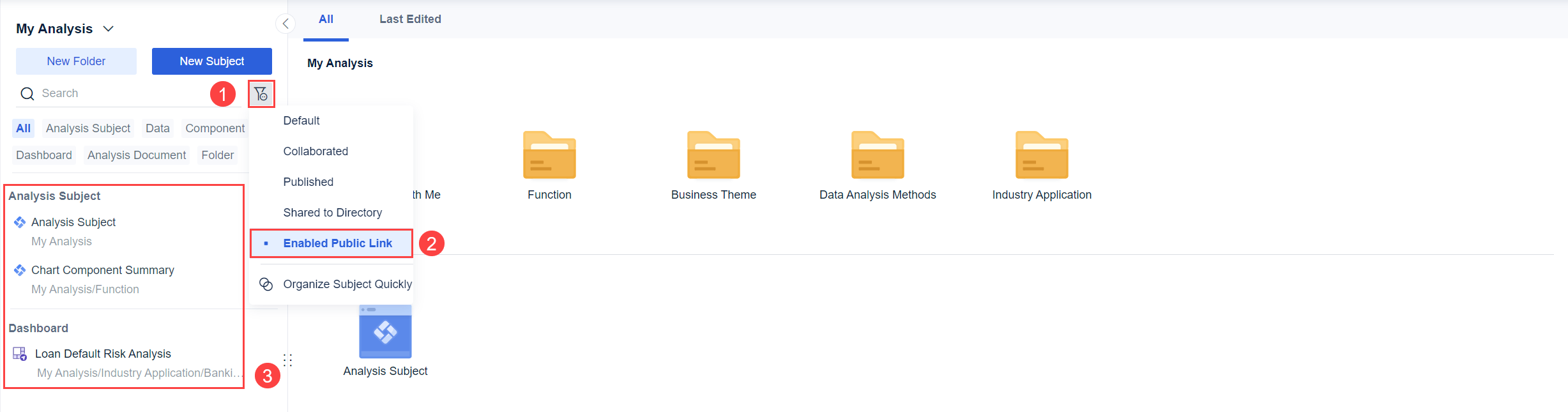
You can view all resources shared through public links. Click My Analysis, click the  icon, and select Enabled Public Link from the drop-down list, as shown in the following figure.
Notes编辑
Local Area Network
If the local area network is used, the recipient needs to be in the same local area network as the sharer to access the dashboard.
Server Registration
Problem: When you share a link, it indicates that the system is unregistered or the number of visitors exceeds the limit.
Cause: The server is not registered.
Solution: Register the server.
Server Error
Problem: The server is reporting an error "ERROR error get user name from req ERROR reportId: 00748d435956496f8a6582f601a8edbf".
Solution: This error message exists in the version of 2020-01-15, but it does not affect normal usage. It no longer exists in the version of 2020-04-03.
Clearing Linkages in Public Links
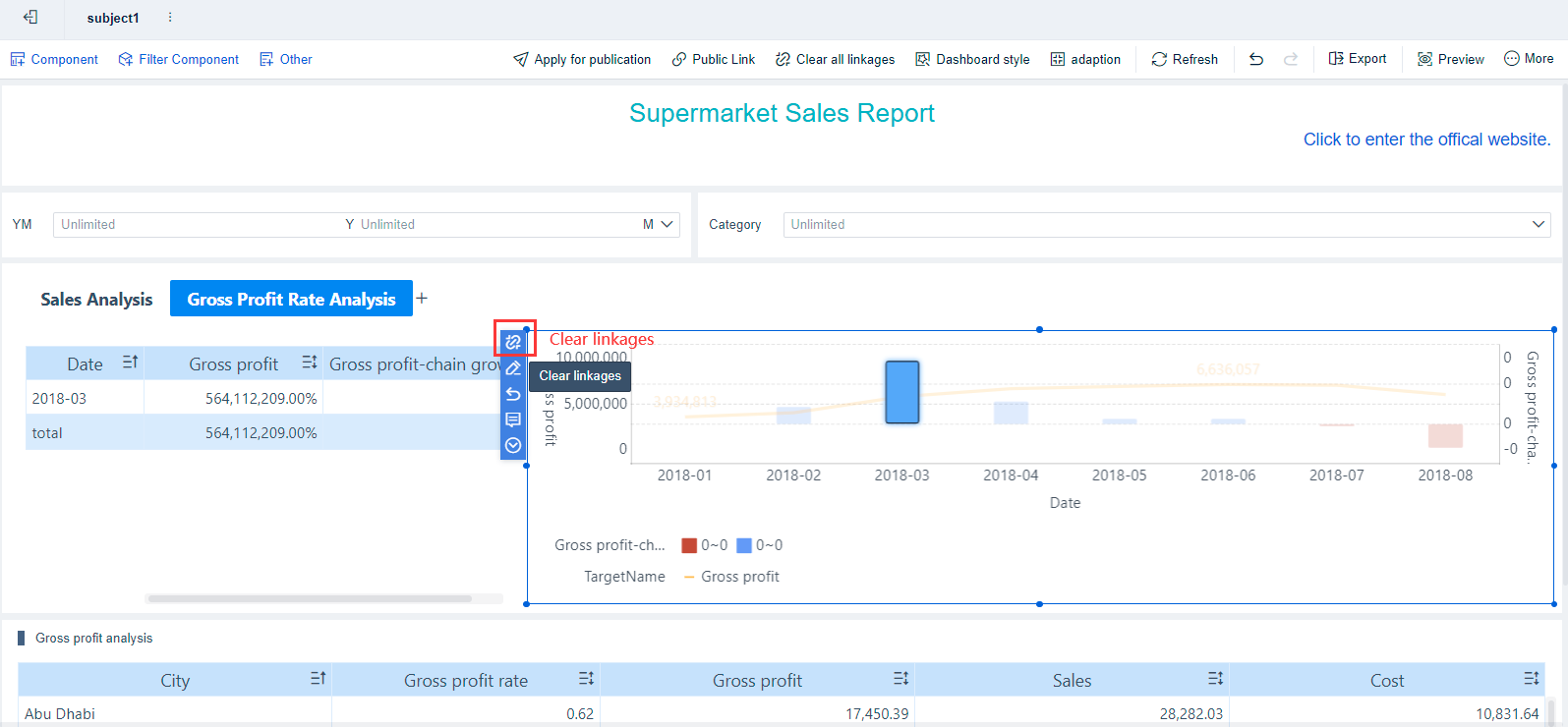
Open a shared public link, and you may find the icon  in the upper right corner if the linkage exists in the dashboard. You can click the icon to reset the dashboard and clear all linkages.
Login Required When Accessing Sub-templates of Templates Shared Through Public Links
Problem: Accessing a sub-template of the template shared through a public link requires login.
Cause: To prevent data leakage, the viewing and data permissions of the sub-template accessed through the public link are the same as those of the logged-in user.
Solution: Add the public link of the target dashboard when setting the dashboard jumping. This requires no login if you are redirected to another dashboard from a dashboard opened through a public link. For details, see Jumping to Another Dashboard (Analysis Template).
IP Replacement Methods
If you install the BI project locally instead of deploying it on a server accessible from the external network, for example, the access address is http://localhost:37799/webroot/decision, the generated dashboard public link will start with localhost, as shown in the following figure.
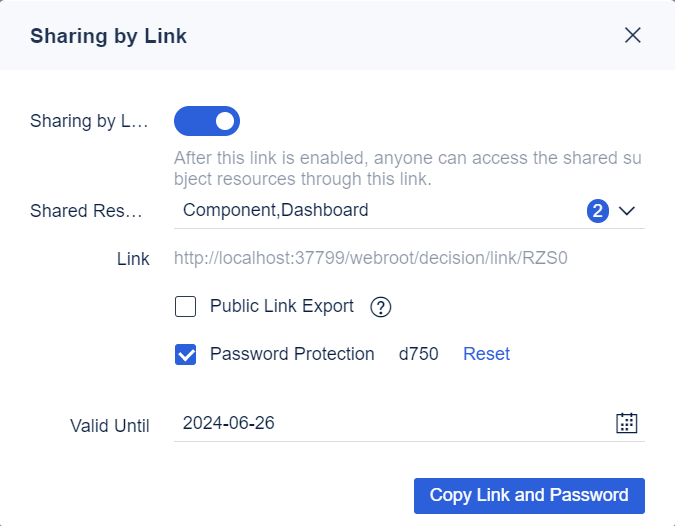
The dashboard shared through this link cannot be accessed by users who are not on the same machine. You need to change "localhost" to the IP address of the current server before sharing it.
Viewing IP Address
To obtain the IP address of a Windows server, you can refer to Finding the Host Name, IP Address or Physical Address of your machine.
To obtain the IP address of a Linux server, you can refer to How to get your Linux IP address in different ways.
Changing localhost to IP Address
For example, the IP address of the machine where FineBI is installed is 120.20.29.224.
The initial public link is:
http://localhost:37799/webroot/decision/link/brQ7
The link after replacement should be:
http://120.20.29.224:37799/webroot/decision/link/brQ7
Creation of an Inbound Firewall Rule
If your FineBI port is not 37799, change the specific local port to the port number you use in Inbound Rules.
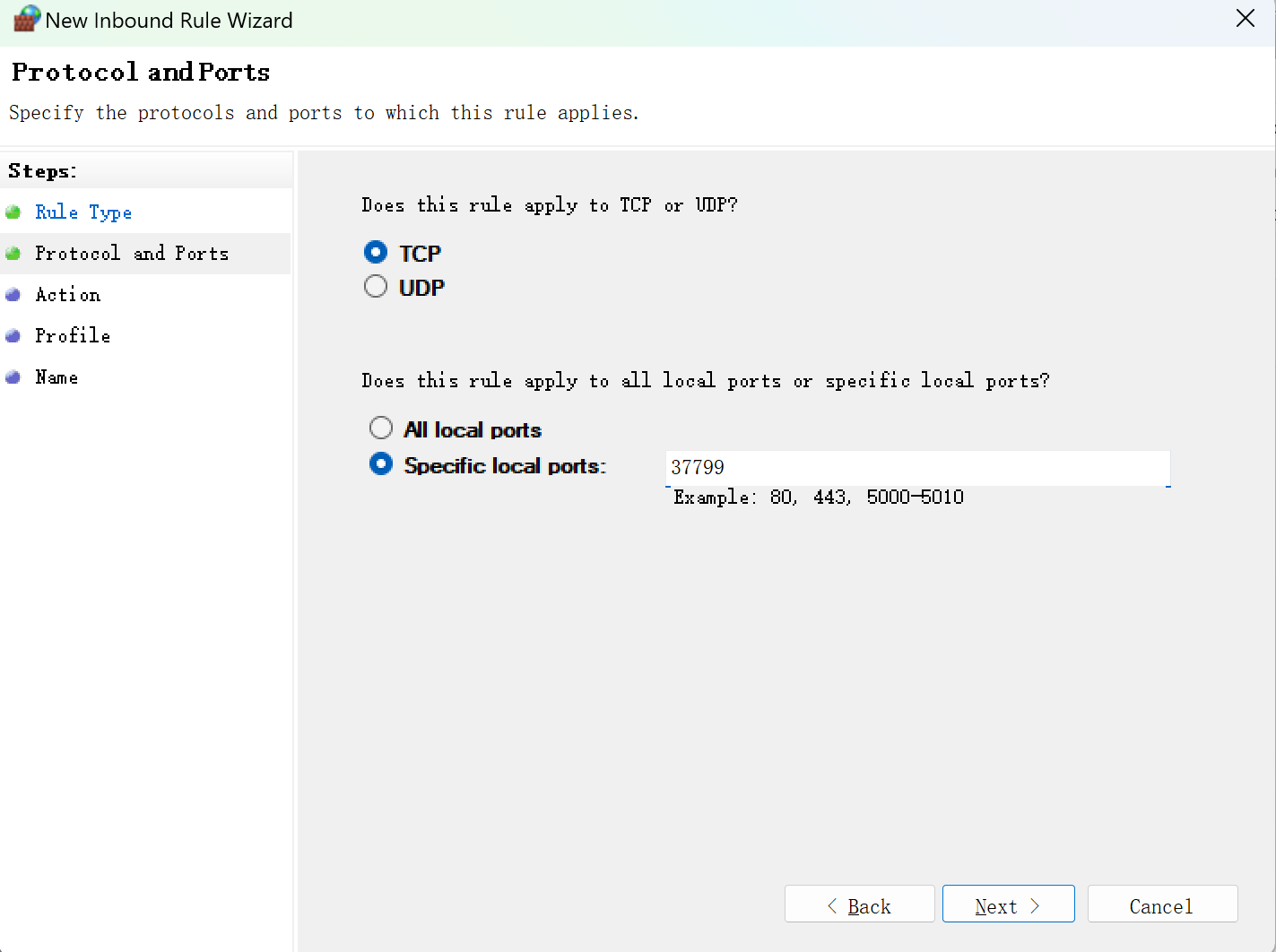
To create an inbound rule for a firewall port on Windows, you can refer to Create an inbound port rule.
Failure to Access Public Links编辑
Troubleshooting
1. First, the BI project needs to be kept running to access the link.
2. For BI installed locally or in an intranet environment, the links cannot be accessed by computers or mobile devices from external networks or other environments.
To access the link, connect the BI project environment and the computer or mobile devices to the same WIFI network.
For example, open a network hotspot using a device and connect other devices to that network.
Then, you can refer to section "IP Replacement Methods" to modify the IP of the BI link.
3. Only two IP addresses are available for the free version (including the IP of users who access the dashboard through public links).
4. Restricted by the firewall.
Solution One: Disable the firewall in the environment where the BI project is located. Solution Two: Refer to the section "Creation of an Inbound Firewall Rule" for instructions.
Other Solutions
If a dashboard is not required to be dynamic, you can use the export dashboard function and share a static report.