

Overview编辑
Application scenario: Users who have installed the FineVis Data Visualization plugin can refer to this document to learn FineVis template functions.
Version
| Report Server Version | FineVis Data Visualization Plugin Version | Functional Change |
|---|---|---|
11.0 | V1.0.0 | For details, see FVS Surveillance Video Component (Historical Versions). |
11.0.22 | V2.5.1 | Optimized the video playback performance. For details, see section "Surveillance Video Quantity Limit." |
11.0.22 | V2.9.0.4 | Allowed you to set the filling method for the surveillance video. For details, see the section "Filling Method." |
11.0.22 | V3.2.0 | Changed the Insert Formula function to the Insert Dynamic Value function. |
Function Description
You can use the surveillance video component to display the live surveillance video.
 Note:
Note:The surveillance video component does not support the FVS Component Interaction Attribute.
For details about the component animation, see FVS Cross-Page Component Animation.
For details about the component attribute, see FVS Component Style and Attribute.
Function Description编辑
Function Entry
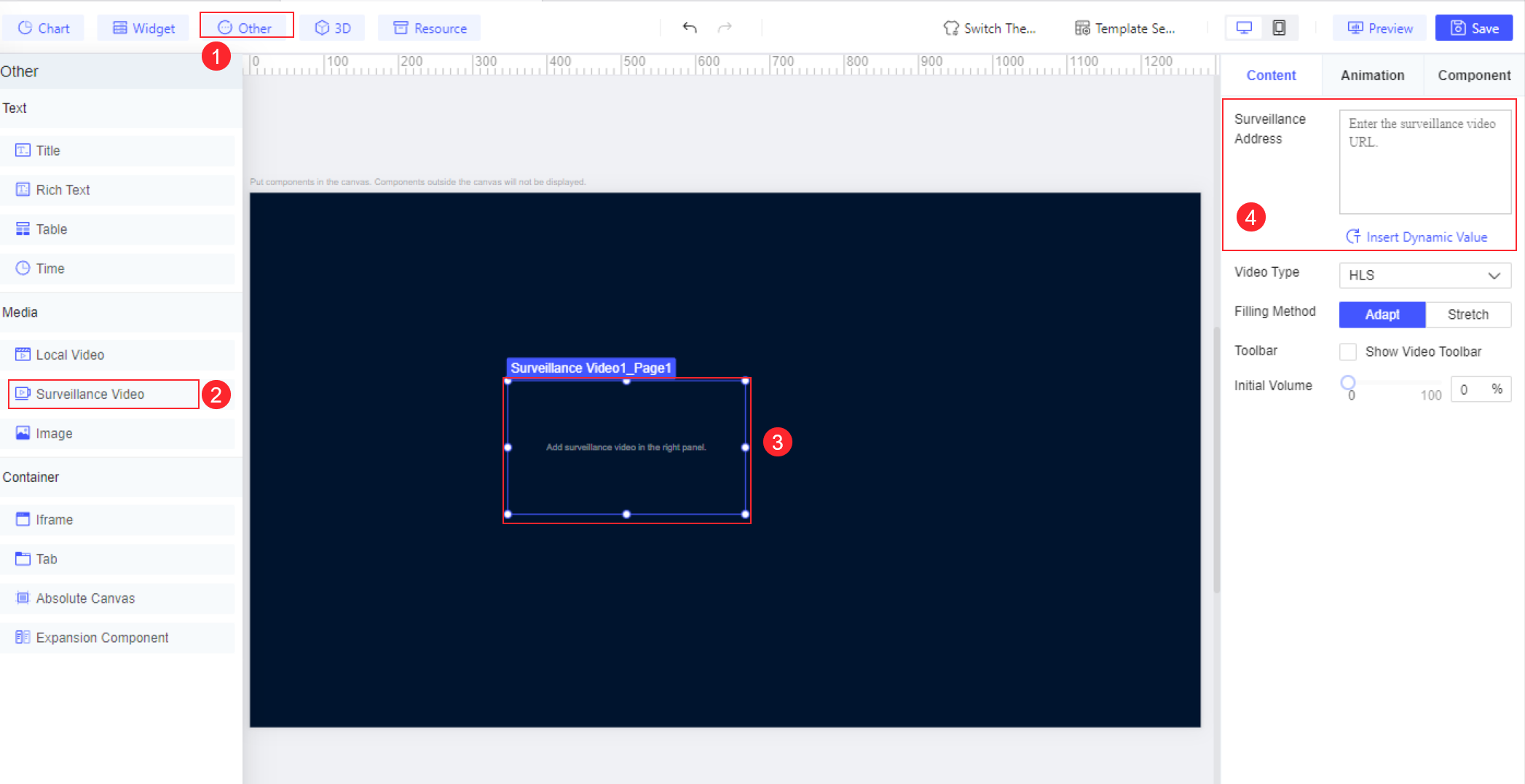
Choose Other > Media > Surveillance Video in the component area to add the component to the canvas. Set the surveillance address and other items in the Content configuration panel on the right side, as shown in the following figure.
Function Description
Surveillance Address
You can insert a surveillance video by directly entering the surveillance address URL.
In the plugin versions earlier than V1.17.0, the surveillance address only supports video streams over the HTTP Live Streaming (HLS) protocol in the format of http://XXX.m3u8.
In the plugin of V1.17.0 and later versions, video streams over three protocols are supported: HLS, Real-Time Streaming Protocol (RTSP), and Real-Time Messaging Protocol (RTMP). You need to select the corresponding protocol in Video Type to parse videos using different protocols.
In the plugin of V3.2.0 and later versions, dynamic display of surveillance videos is supported by inserting dynamic values in the URL. Dynamic values: support entering formulas or directly binding dataset fields (with the first row of data selected by default). For details, see FVS Dynamic Value.
Note:Video Type
HLS, RTSP, or RTMP can be selected as Video Type. If RTSP or RTMP is selected, you need to install the FVS Streaming Processing Dependency plugin.
Note:1. RTSP/RTMP video sources cannot be displayed on iOS.
2. When you use the Hikvision cameras and select HLS as Video Type, only the H.264 video encoding format is supported. You can use VLC to check codec information and understand the specific protocol details.
If the plugin is not installed, you are prompted to install it. Click Install to jump to the plugin management page.
You can contact your technical support to obtain the plugin.
For details about how to install the plugin in the designer, see Designer Plugin Management.
For details about how to install the plugin on the server, see Server Plugin Management.
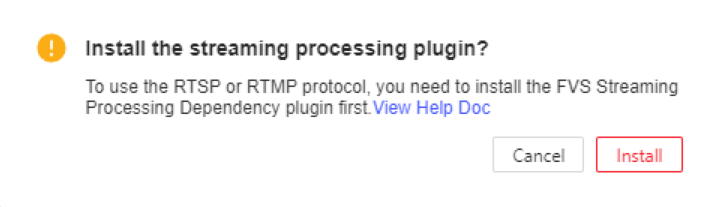
If the FVS Streaming Processing Dependency plugin is not installed, when you preview a template with an RTSP or RTMP surveillance video, an error message will be displayed, indicating that no compatible source for this video was found, as shown in the following figure.

Note:Filling Method
In the V2.9.0.4 and later versions, you can set Filling Method to Adapt or Stretch for the surveillance video.
Adapt: The video maintains its original aspect ratio and scales proportionally to fit the component width or height.
Stretch: The video stretches to match the component width or height.
Toolbar
You can configure whether to display the video toolbar, which is hidden by default.
Initial Volume
You can configure the volume of the surveillance video, which is 0 by default.
Example编辑
The following sections introduce how to display different surveillance videos through the FVS Dropdown Box Widget.
Template Creation
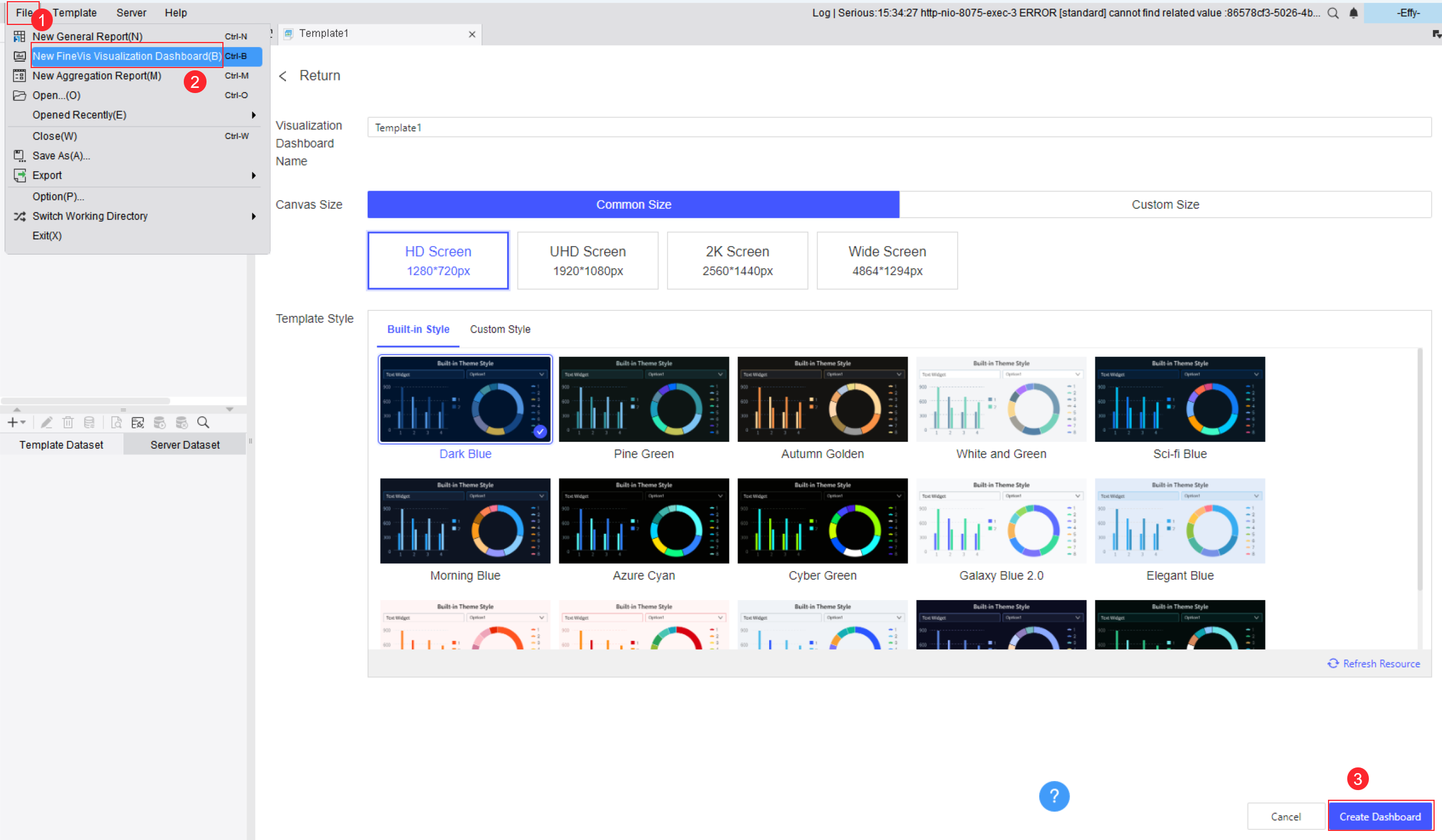
Choose File > New FineVis Visualization Dashboard in the upper-left corner of the designer, and create a blank dashboard. You can customize its name and size, as shown in the following figure.
Dropdown Box Widget Setting
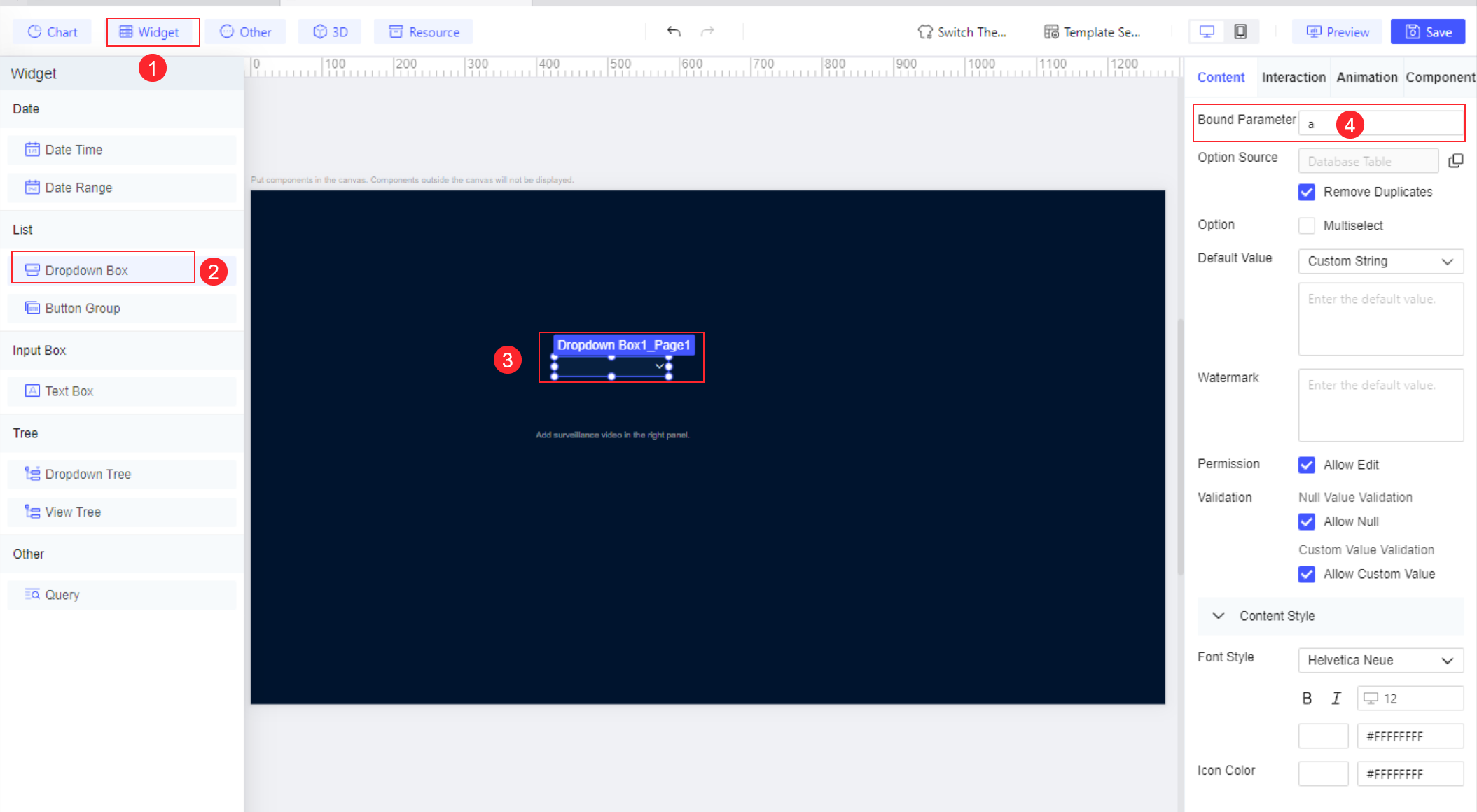
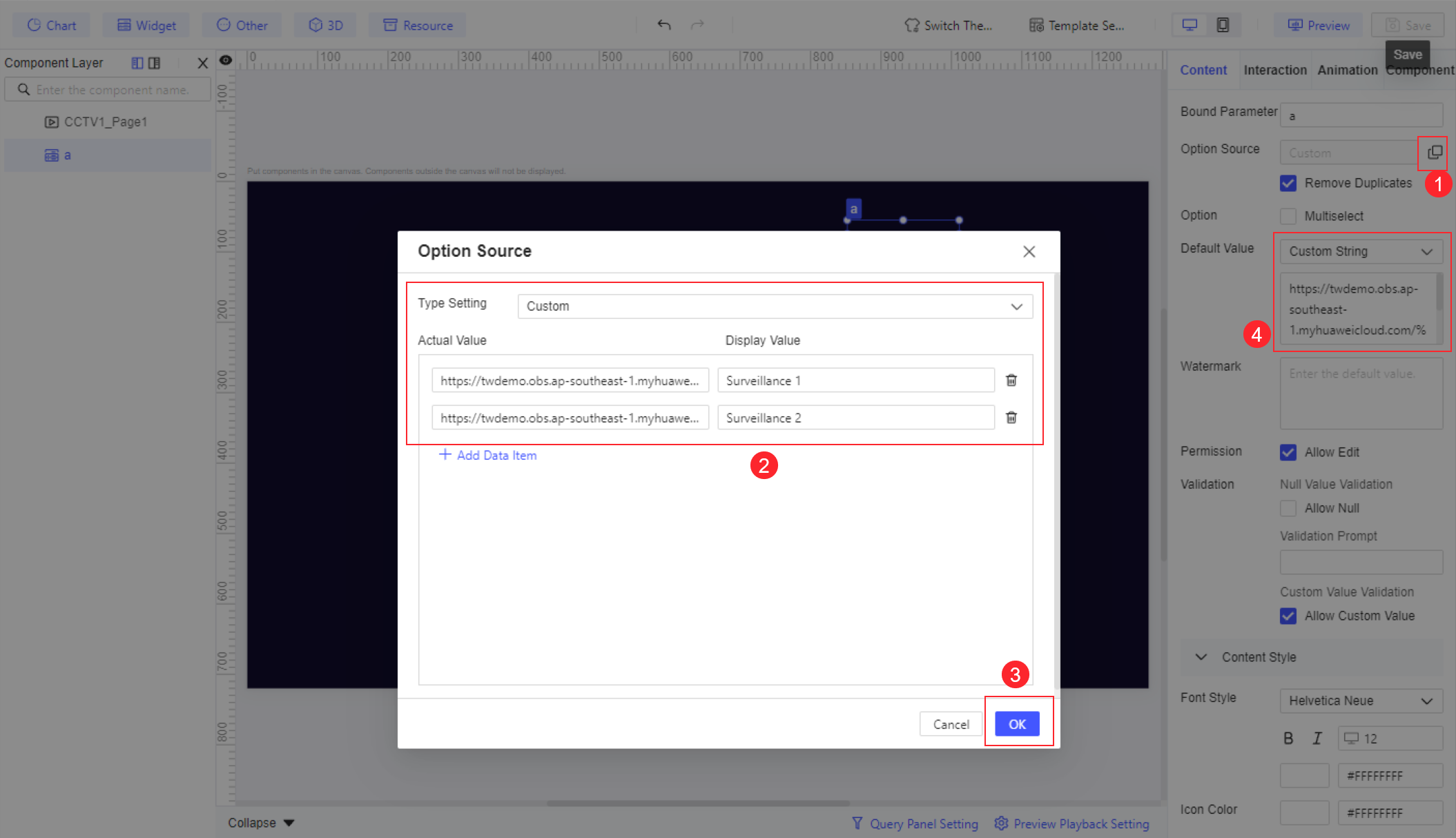
(1) Drag a Dropdown Box widget to the canvas, and set Bound Parameter to a for the widget. The widget is used to set the surveillance addresses and link the surveillance video component.
(2) Click the  button near Option Source, in the pop-up Option Source window, set Type Setting to Custom, enter the required surveillance addresses below Actual Value, and customize Display Value.
Note:You are advised to find available resources yourself or test with actual addresses.
After the settings are complete, set Default Value to Custom String for the widget, and enter one of the preceding surveillance addresses, as shown in the following figure.
Surveillance Video Component Setting
Choose Other > Media > Surveillance Video to add a surveillance video component on the page, click Insert Dynamic Value below Surveillance Address, set Dynamic Value Source to Formula, click the  button, enter $a, and click OK. The following figure shows the steps.
Note: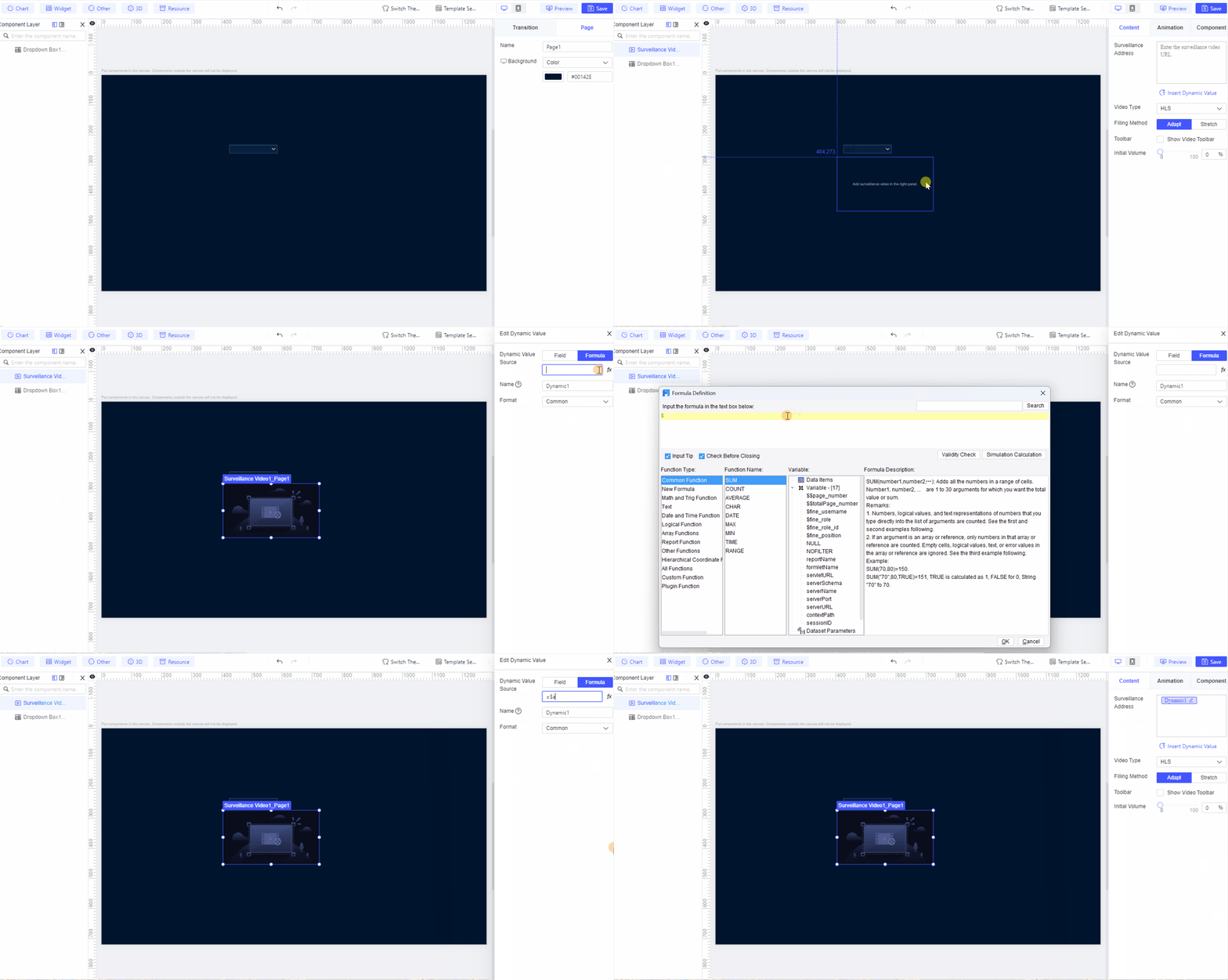
Effect Preview
PC
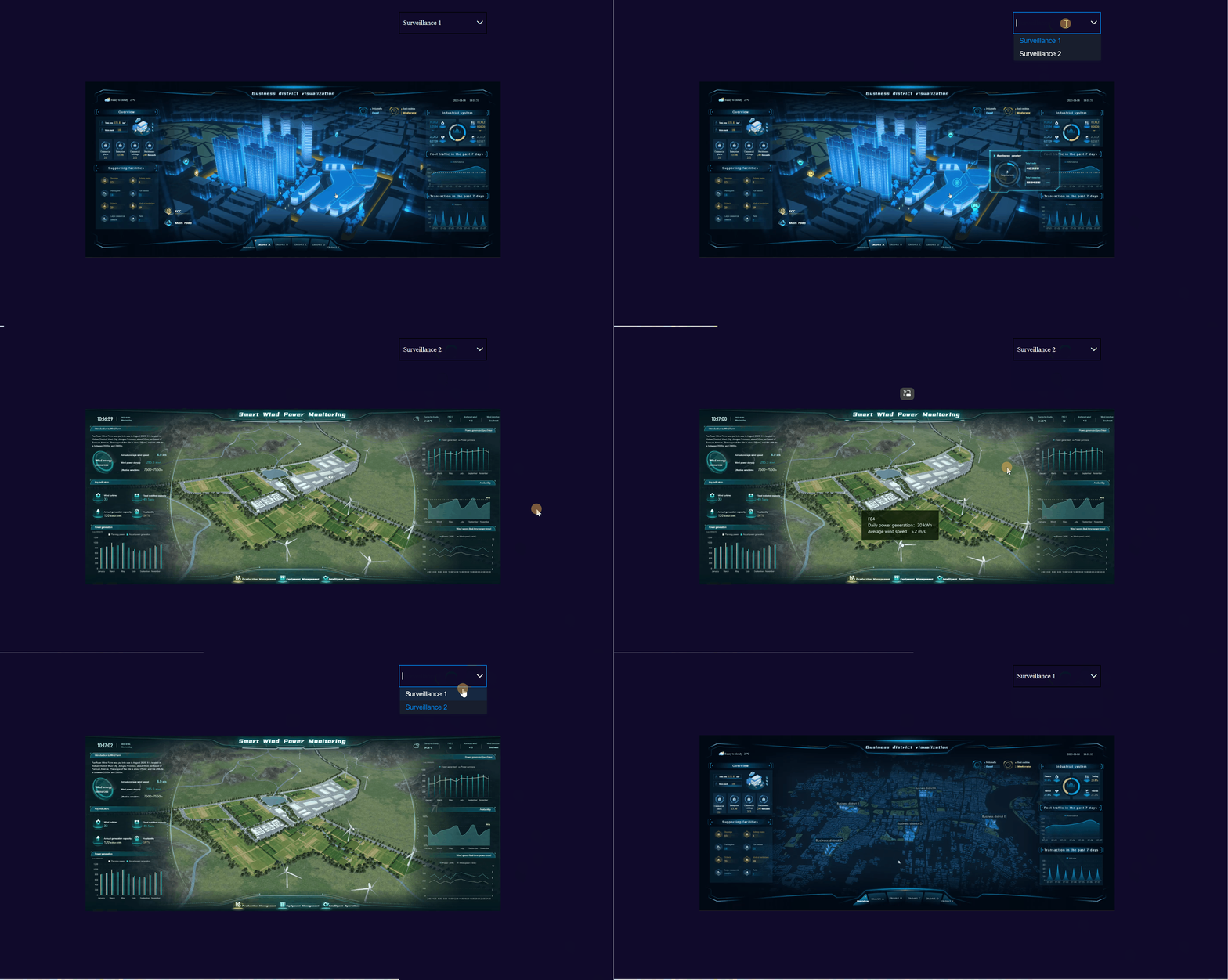
Click Save in the upper-right corner, and then click Preview. The following figure shows the effect.
Mobile Terminals
For the preview on mobile terminals, see FVS Template Preview and Mounting. The following figure shows the effect.

Template Download编辑
Download the template by clicking Dynamic Display of Surveillance Videos.fvs.
Notes编辑
EZVIZ Camera Surveillance Address
If you use the EZVIZ camera, you can directly log in to the EZVIZ Open Platform to obtain the address for live streaming over the HLS protocol.
Troubleshooting Steps for Surveillance Video Playback Failures
As mentioned above, if the FVS Streaming Processing Dependency plugin is not installed, when you preview a template with an RTSP or RTMP surveillance video, an error message will be displayed, indicating that no compatible source for this video was found.
If you have installed the plugin, but still receive the prompt indicating that no compatible source for this video was found, you can follow the steps below to troubleshoot:
Checking the Video Stream and Network Connectivity
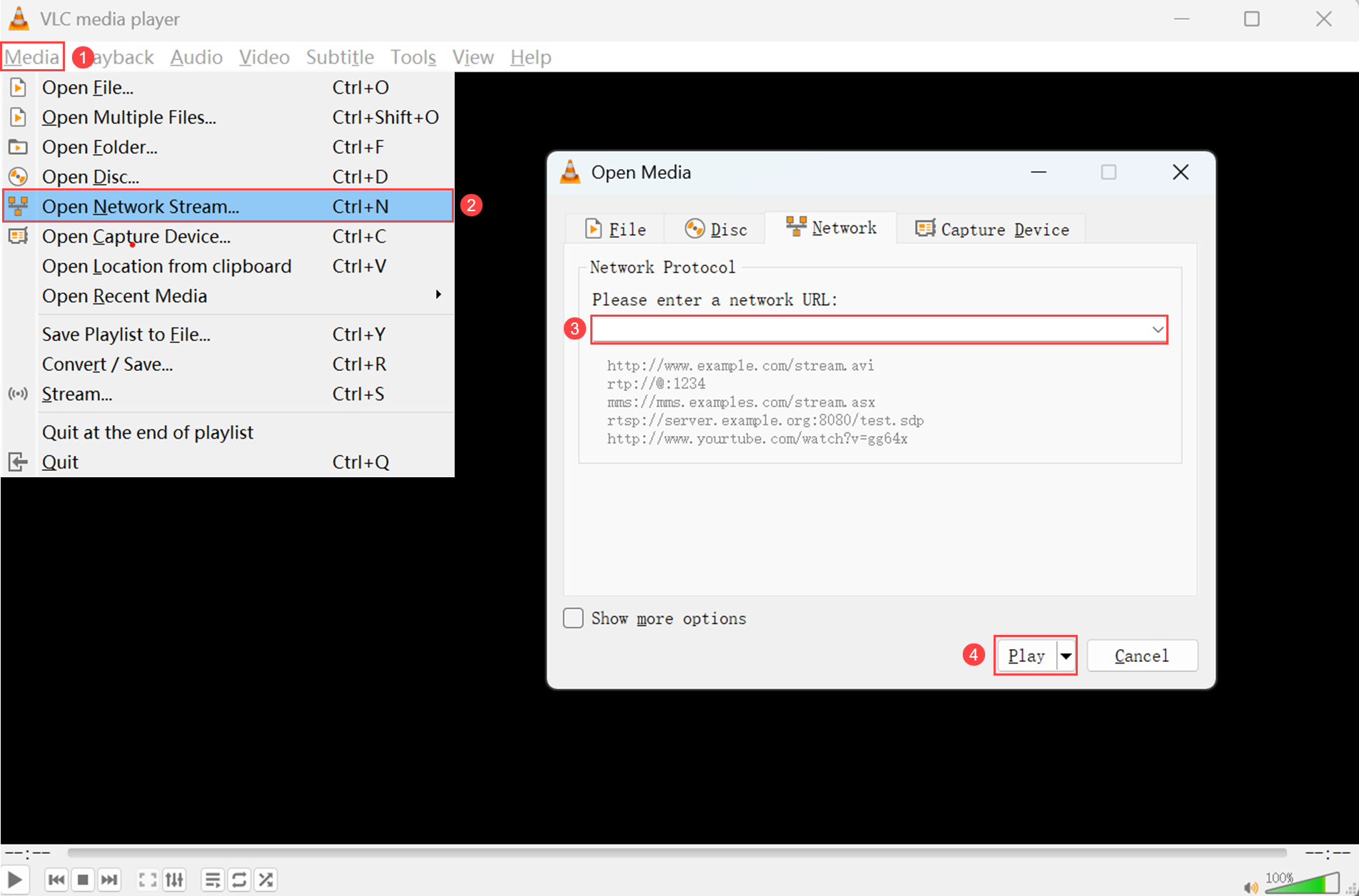
(1) Test whether the video can be played by the VLC media player. VLC download address: https://www.videolan.org/index.an.html.
After you have downloaded and installed the player, choose Media > Open Network Stream, enter the URL of your surveillance video, and click Play to test playback.
(2) Check the telnet connectivity between the server and the surveillance video server.
Example:
Successful telnet connection
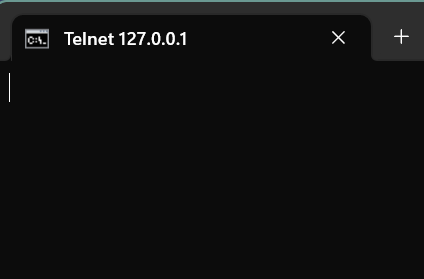
Failed telnet connection

Checking the Linux System Compatibility
On older versions of Linux systems, you still cannot preview surveillance videos after installed the FVS Streaming Processing Dependency plugin V2.7 and later versions.
Note:How to define "older versions" of Linux systems: Use the FVS Streaming Processing Dependency plugin V2.9 and check the prompts in logs to determine whether you need to peform an upgrade. If you see the following error in the logs, you are likely running an older version of Linux.

You can resolve this issue with the following solutions:
(1) Upgrade GCC to version 4.9 or later (which introduces CXXABI_1.3.8).
(2) Delete the FVS Streaming Processing Dependency plugin and install the FVS Streaming Processing Dependency - Adapted for Older Linux Versions plugin.
Note:Surveillance Video Quantity Limit
When you use the RTSP or RTMP protocols for surveillance videos, you need to pay attention to the quantity limit of the surveillance video components.
(1) If you use FVS of versions earlier than V2.5.1 and the FVS Streaming Processing Dependency plugin of versions earlier than V1.9, you should not add more than six surveillance video components to a single page; otherwise, the videos may fail to play.
(2) Upgrade the FVS plugin to V2.5.1 or later versions, and ensure the FVS Streaming Processing Dependency plugin's version is V2.5 or later versions. Refer to the FINE_CONF_ENTITY Visualization Configuration to modify the WebSocketConfig.randomSession parameter value to true. After the modification, the quantity of surveillance video components supported by a single page will increase; however, the maximum quantity is strongly correlated with the audio/video encoding and decoding formats, as well as the resolution.
Test environment:
Server: CPU i5-12400F, RAM 32G
Client: CPU i7-12700H, GPU RTX3060, RAM 32G
The test results are shown in the following table:
| Mode | Audio/Video Encoding Format | Resolution | Bitrate (kb/s) | Maximum Number of Playable Videos |
|---|---|---|---|---|
Normal mode | H.264 + Non-AAC H.265 + Any audio configuration | 2560*1440 (2K) | 4096 | 8 |
1280*720 (720P) | 2048 | 28 | ||
High performance mode | H.264 + AAC H.264 + Audio disabled | 2560*1440 (2K) | 4096 | 19 |
1920*1080 (1080P) | 4096 | 28 | ||
1280*720 (720P) | 2048 | 40 | ||
704*576 | 512 | 72 |
Note:Surveillance Video Playback Stuttering
Cause analysis
During the template preview, surveillance video playback stuttering may be caused by the inability to parse the audio of the surveillance video.
Solution
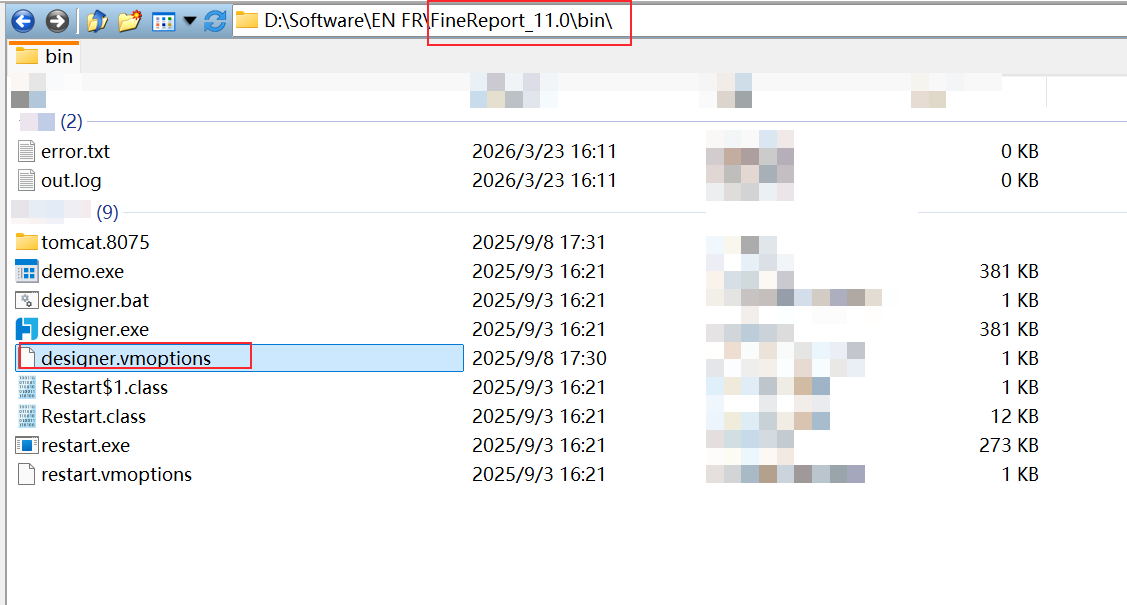
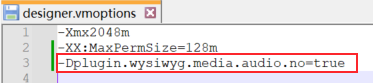
Add the startup parameter -Dplugin.wysiwyg.media.audio.no=true to the designer.vmoptions file.
The function of this parameter is to configure playback without parsing the audio. A project restart is required after adding the parameter.
Note:1. The FVS Streaming Processing Dependency plugin must be upgraded to V2.0 or later versions.
2. Unless absolutely necessary (such as 4K or 8K large-screen display scenarios), you are advised to use sub streams or reduce the resolution.
The file path is as shown in the following figure.
The added parameter is as shown in the following figure.
You can also modify the parameter through the project environment:
In a Windows Tomcat environment, add the following code to the catalina.bat file:
set "JAVA_OPTS=-Dplugin.wysiwyg.media.audio.no=true"
In a Linux Tomcat environment, add the following code to the catalina.sh file:
JAVA_OPTS="-Dplugin.wysiwyg.media.audio.no=true"